


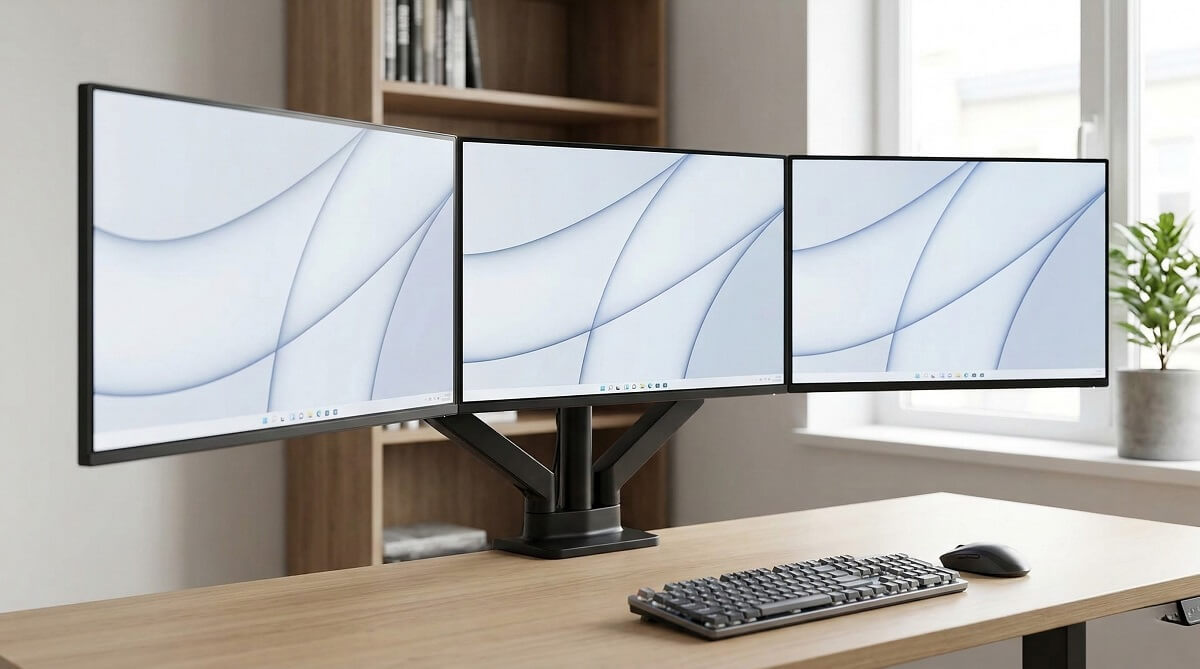
If you’re setting up three monitors on your desk, a triple monitor stand can save 12-18 inches of desk depth and make alignment easier than juggling three separate stands. After comparing the top-rated models, the WALI M003 offers the best mix of stability and value at around $70-80, while the MOUNTUP MU0006A ($119.99) gives you gas spring arms for smoother adjustments. Budget-focused? The ErGear triple mount starts at $69.99 with USB ports included. If you’re also shopping for to complete your setup, we’ve got guides for those too.
But before you buy anything, you need to verify three things: your monitors have VESA mount holes (check the back), your desk can handle a clamp or drilled hole, and each monitor weighs under 15-20 lbs depending on the stand. Most 27-inch monitors weigh 10-15 lbs without the stand, so they fit fine. Larger or heavier displays need individual checking.
Prices as of February 2026. Expect to pay $70-90 for mechanical arm models, $100-140 for gas spring versions, and $150+ for premium options with extra features. We’ll walk you through compatibility checks, real-world setup issues, and which models actually deliver on their specs.
Who Should (and Shouldn’t) Use a Triple Monitor Stand
✅ Best For
- Monitors 27 inches or smaller — Most stands max out at this size
- Desks at least 24 inches deep — You need room for the pole and monitor depth
- Monitors with VESA mount holes — Look for 75x75mm or 100x100mm patterns on the back
- Sturdy desk edges or willingness to drill — Clamp or grommet mounting required
- Work-from-home setups that don’t move often — Great for permanent multi-tasking stations
❌ Skip If
- You have ultrawide monitors (32″+) — Weight and size limits make single/dual mounts better
- Glass desk or very thin desktop — Clamps can crack glass; thin desks flex under weight
- Monitors lack VESA holes — Non-standard mounting means you need adapter kits
- You rearrange your desk frequently — Monitor arms take time to reposition
- You’re renting and can’t modify furniture — Clamps leave marks; grommet holes are permanent
What Are Triple Monitor Stands?
A triple monitor stand mounts three displays to a single pole that attaches to your desk, either by clamping onto the edge or bolting through a drilled hole. This lifts all three screens off the desktop, freeing up space underneath for keyboards, notebooks, or other gear. You get independent adjustment for each monitor (tilt, swivel, height) plus the ability to align them precisely without dealing with three separate bases.
Types of Triple Monitor Mounts
You’ll encounter three mounting styles, though triple setups almost always use clamp-on or grommet options:
Clamp-on (C-clamp): A metal clamp grips your desk edge, tightening with a screw mechanism. Most common for triple stands because it’s reversible and works on desks 0.4-3.9 inches thick. The clamp needs at least 2 inches of clear edge space without underframes or side panels blocking it.
Grommet (through-desk bolt): You drill a hole (typically 0.4-3.15 inches diameter) and bolt the stand through your desktop. More stable than clamps, especially for standing desks that move up and down. The trade-off? You’re committing to a permanent hole in your desk.
Freestanding: Rare for triple setups. These use a heavy base that sits on your desk. They take up more space than clamp/grommet options, which defeats the point of a monitor arm for most users.
Gas Spring vs Mechanical Arms
Triple monitor stands use either gas spring arms (like office chair height adjusters) or mechanical arms with manual tension screws.
Gas spring arms let you reposition monitors with light pressure—push up, pull down, no tools needed. They’re smooth and feel premium, but they cost $100-140 compared to $70-90 for mechanical models. Examples: MOUNTUP MU0006A ($119.99), HUANUO gas spring models (~$139).
Mechanical arms use tension screws you tighten with an Allen wrench. Once set, they hold position firmly. Adjusting height or angle requires loosening screws, moving the monitor, then re-tightening. Less convenient but more affordable. Examples: WALI M003, ErGear base models.
For most people, mechanical arms are fine if you set up once and don’t adjust often. Gas springs make sense if you share a desk, switch between sitting and standing, or just like the flexibility.
How to Choose the Right Triple Monitor Stand
Check Your Monitor Compatibility
VESA Pattern Check: Flip your monitor around and look for four screw holes arranged in a square pattern on the back. Measure the distance between holes—most monitors use either 75x75mm (about 3 inches) or 100x100mm (about 4 inches). According to VESA standards from Ergotron, the MIS-D pattern (which includes 75×75 and 100×100) covers monitors up to 14 kg (30.8 lbs) and screen sizes from 12 to 23 inches diagonally, though many 27-inch monitors also use these patterns.
If your monitor doesn’t have VESA holes, you’ll need an adapter plate that attaches to the monitor’s existing stand mount. Some budget monitors skip VESA entirely to save costs.
Size and Weight Limits: Triple stands typically support 13-27 inch monitors per arm. Larger displays usually exceed the weight limit even if they physically fit. According to monitor weight data from The Workspace Hero, the average 27-inch monitor weighs about 9.9 lbs without the stand, though some reach 15 lbs depending on build materials and features like built-in speakers. If you’re shopping for , check their weight specs before buying a mount.
Weight capacity varies by model: the WALI M003 holds 22 lbs per arm, MOUNTUP MU0006A handles 4.4-19.8 lbs, ErGear and HUANUO support up to 17.6 lbs per arm. If your monitor weighs over 15 lbs, verify it falls within your stand’s range. Check the manufacturer’s spec sheet for exact weight—it’s usually listed under “Weight (without stand).”
Measure Your Desk Setup
Desk Thickness Requirements: Most clamps accommodate 0.4 to 3.3 inches of desk thickness, with some extending to 3.94 inches. Measure your desktop with a ruler or caliper. If you have a standing desk, note that many use thicker tops (1.5-2 inches) which still fit standard clamps.
Watch out for desks with underframes, back panels, or side panels. The clamp needs flat surface contact on both top and bottom. If your desk has a metal support bar running under the edge, the clamp might not sit flush. Similarly, desks with raised side panels or back panels may not leave enough clearance for the clamp body (usually needs 2-3 inches of open edge).
Depth and Clearance: You need at least 24 inches of desk depth for comfortable viewing with three monitors. The stand pole adds 4-6 inches behind the monitors, and you want monitors about 20-30 inches from your eyes depending on screen size. Shallower desks push monitors too close, causing neck strain.
If your desk has a back panel, ensure there’s enough depth between the desktop and panel for the clamp mechanism—typically 5-6 inches minimum. with control boxes mounted under the rear edge sometimes interfere with grommet installations.
Decide What Features You Actually Need
Must-Have Features:
- VESA 75/100 compatibility — Universal mounting for most monitors
- Tilt and swivel — At minimum, you need ±35-45° tilt and ±90° swivel to reduce glare
- Cable management clips — Keeps power and video cables tidy along the arms
Nice-to-Have Features:
- Gas spring adjustment — Smooth height changes, worth the $30-50 premium if you adjust often
- 360° rotation — Lets you flip monitors between landscape and portrait orientation
- Tool-free tightening — Knobs instead of Allen keys make setup faster
- USB ports and audio jacks — Mount-It! and some ErGear models include passthrough USB 3.0 and headphone jacks at the base, which is handy for connecting peripherals without reaching under your desk
Marketing Fluff to Ignore: Claims of “35-40% productivity boost” show up everywhere. While research from Fujitsu found that three monitors can increase productivity by approximately 35.5% for document-heavy tasks, and Jon Peddie Research reported self-reported gains averaging 42%, these studies were often sponsored by monitor manufacturers. Your actual productivity gain depends on your workflow—if you’re constantly switching between spreadsheets, code, and documentation, three monitors help. If you mainly use one app full-screen, you won’t see the same benefit.
Also ignore phrases like “premium aluminum construction” unless it’s all-aluminum. Most stands use steel frames with aluminum accents or covers. The steel parts are what matter for strength.
Top Triple Monitor Stands for 2026
Comparison Table
| Model | Type | Price | Monitor Size | Weight Capacity | Key Feature |
|---|---|---|---|---|---|
| WALI M003 | Mechanical | $70-80 | 13-27″ | 22 lbs/arm | Best value, highest weight capacity |
| ErGear Triple Mount | Gas Spring | $69.99-85 | 13-27″ | 17.6 lbs/arm | Budget gas spring option, USB ports |
| MOUNTUP MU0006A | Gas Spring | $119.99 | Up to 27″ | 4.4-19.8 lbs/arm | Smooth gas spring adjustment |
| HUANUO Triple Stand | Gas Spring | ~$139 | 17-32″ | 17.6 lbs/arm | 5-year warranty, 20k lift cycle rating |
| VIVO STAND-V103 | Mechanical | $69.99+ | 23-32″ | Varies | Budget option for larger monitors |
Prices as of February 2026. Check retailer sites for current pricing and availability.
Best Overall: WALI M003
Price: $70-80 on Amazon
The WALI M003 hits the sweet spot for most users: it’s affordable, holds the most weight (22 lbs per arm), and supports monitors up to 27 inches. With mechanical arms instead of gas springs, you adjust height and angle using Allen wrenches, which means it’s not as smooth as premium models but costs half as much.
WALI has sold over 5 million monitor mounts over 5+ years, and customer reviews consistently mention solid build quality. The joints are stiff out of the box—you’ll need to apply firm pressure when rotating monitors—but that stiffness means they hold position without drooping over time.
Key Specs: 13-27″ monitors | 22 lbs per arm | VESA 75×75/100×100 | Tilt, swivel, rotation | C-clamp or grommet mounting | Integrated cable management
What we like: Highest weight capacity in this price range, excellent stability on sit-stand desks (reviewers confirm no wobble during height adjustments), includes both clamp and grommet hardware.
What could be better: Stiff joints require force to adjust (by design for stability), base footprint slightly larger than gas spring models, no USB ports.
Who it’s best for: Anyone with 24-27 inch monitors who wants reliable performance without paying for gas springs they won’t use often.
Best Budget Pick: ErGear Triple Mount
Price: $69.99 (as low as $85 with coupons) on Amazon
If you want gas spring arms at a mechanical arm price, ErGear delivers. At $69.99, it’s the cheapest gas spring triple mount that doesn’t sacrifice build quality. You also get two built-in USB ports at the base for charging phones or connecting peripherals—a feature usually reserved for $100+ models.
The catch: 17.6 lbs weight capacity per arm is lower than WALI’s 22 lbs, so heavier monitors may cause the arms to droop slightly over time. For standard 24-27 inch monitors (typically 10-15 lbs), it works fine.
Key Specs: 13-27″ monitors | 17.6 lbs per arm | VESA 75×75/100×100 | ±90° swivel, ±45° tilt, 360° rotation | USB ports | Gas spring arms
What we like: Gas springs at a budget price, USB ports add functionality, premium steel construction tested for 20,000 lift cycles.
What could be better: Lower weight capacity than WALI, some users note that 27-inch monitors work better in side-by-side horizontal configuration than brought forward in a curve.
Who it’s best for: Budget-conscious users with standard-weight monitors who want the convenience of gas springs and bonus USB connectivity.
Best for Standing Desks: MOUNTUP MU0006A
Price: $119.99 on MOUNTUP official site
Standing desk users need mounts that handle vibration during height changes and offer quick repositioning when switching between sitting and standing. The MOUNTUP MU0006A’s gas spring arms adjust smoothly without tools, and the clamp design fits desks 0.39-1.97 inches thick (covers most standing desk tops).
With 11.45 inches of height adjustment and full tilt/swivel/rotation, you can dial in ergonomic positioning for both sitting and standing without loosening a single screw. The center monitor mounts to a fixed post while the side arms articulate independently.
Key Specs: Up to 27″ monitors | 4.4-19.8 lbs per arm | VESA 75×75/100×100 | ±90° tilt, ±90° swivel, 360° rotation | 11.45″ height adjustment | Gas spring arms | Integrated cable management
What we like: Smooth height adjustment perfect for sit-stand transitions, no wobble during desk movement (per user reviews), easy cable routing keeps setup tidy.
What could be better: Higher price than mechanical models, clamp thickness limit (1.97″) may not fit extra-thick standing desk tops.
Who it’s best for: Standing desk owners who adjust monitor height frequently and want effortless repositioning.
Best Premium/Gas Spring: HUANUO Triple Stand
Price: ~$139 (varies by retailer)
HUANUO’s triple mount uses aerospace-grade aluminum construction and gas springs rated for 20,000 lift cycles—about 10-15 years of daily adjustments. You’re paying extra for durability and the 5-year limited warranty, which is longer than most competitors offer.
It supports monitors from 17-32 inches (wider range than most), though stay within the 17.6 lbs per arm weight limit. The 12.2 inches of height adjustment gives more range than the MOUNTUP MU0006A’s 11.45 inches.
Key Specs: 17-32″ monitors | 17.6 lbs per arm | VESA 75×75/100×100 | 360° rotation, ±90° swivel, ±85° tilt | 12.2″ height adjustment | Gas springs (20k cycle rating) | 5-year warranty
What we like: Premium build quality, longest warranty in this roundup, supports larger monitors (up to 32″), proven durability testing.
What could be better: Costs $40-60 more than mid-range gas spring models, aluminum construction is nice but doesn’t dramatically change performance vs steel.
Who it’s best for: Users willing to pay for extended warranty coverage and maximum adjustability range.
Other Solid Options
Mount-It! Triple Monitor Mount: If you want USB 3.0 passthrough and audio jacks built into the mount, Mount-It! offers models with these features plus gas spring arms. Prices run higher ($150-200) but you get premium construction and a 5-year warranty. Good for users who want all-in-one connectivity at their desk.
VIVO STAND-V103: Budget option starting at $69.99 for users with 23-32 inch monitors. Mechanical arms keep costs down. VIVO has been around for years with solid customer service.
Real-World Setup Considerations
Cable Management Reality Check
What You’ll Actually Need: Plan for 6-10 foot cables depending on how you route them. If you’re using the built-in cable clips to run wires down the monitor arm, through the pole, and across to your PC, shorter cables won’t reach. Standard 3-6 foot cables that come with monitors often fall short. For more on , check our setup guides.
For three monitors, you’ll need three power cables and three video cables (HDMI, DisplayPort, or USB-C depending on your setup). If you’re running them through cable management clips, get cables with thin connectors—bulky connectors don’t fit well in tight clips.
Cable Clips and Routing: Most stands include 4-6 cable clips that snap onto the arms and pole. These work okay for thin cables but struggle with thick braided cables or multiple cables bundled together. Some users buy additional velcro cable ties or cable sleeves to keep everything neat.
The center monitor usually has its cables routed down the main pole, while side monitor cables run along the articulating arms. This keeps wires out of sight from your sitting position but requires planning during initial setup.
Monitor Alignment Tips
Common Frustration: Getting Monitors Perfectly Aligned
Aligning three monitors so the top edges match and bezels line up is harder than it looks. Here’s the reality: gas spring arms make micro-adjustments easier, but even premium stands require patience.
Practical tips:
- Start with the center monitor: Get it at the right height and distance first. Side monitors adjust to match.
- Use a level tool or measuring tape: Measure from the desk to the top of each monitor. Small differences (1/4 inch) are noticeable.
- Adjust tension screws if monitors droop: Gas spring arms have tension adjustment screws (usually hex key). If a monitor sags under its weight, tighten the screw 1-2 turns.
- Accept “close enough”: Perfect alignment down to the millimeter takes 30-60 minutes of tweaking. Most people land on “good enough” after 10-15 minutes, and it looks fine in practice.
Desk Reinforcement—Do You Need It?
When to Buy a Reinforcement Plate:
A reinforcement plate spreads the clamp’s pressure over a larger area, protecting your desk from damage. You need one if:
- Particle board desks under 1 inch thick — These can bow or crack under the 30-50 lbs of monitor weight concentrated at the clamp point
- Total monitor weight over 40 lbs — Three heavy monitors (15+ lbs each) put significant stress on the clamp area
- Standing desks that vibrate during height changes — The constant micro-movements can work the clamp loose or dent softer desk materials over time
When Your Desk Is Fine:
- Solid wood desks 1 inch or thicker — Hardwood or thick plywood handles clamp pressure without issue
- High-quality bamboo — Bamboo is denser than most woods and resists denting
- Desks rated for monitor arms — Many explicitly support monitor mounts up to 50-60 lbs
Reinforcement plates cost $10-20 and install between the clamp and desktop. If your desk cost over $300 and you’re worried about damage, it’s cheap insurance.
Installation Overview
What’s Included (Typically)
Check your box for:
- Main pole and base plate
- Three monitor arms (two articulating, one fixed for center monitor on most models)
- C-clamp and/or grommet mounting hardware
- VESA adapter plates (usually quick-release)
- Allen keys (hex wrenches) in multiple sizes
- Cable management clips (4-6 pieces)
- Screws for VESA mounting (M4 and M5 sizes for 75mm and 100mm patterns)
- Instruction manual
Installation Steps Summary
- Choose mounting location: Find a desk edge with 3+ inches of clearance and no obstructions underneath.
- Assemble base: Attach the pole to the base plate using the included bolts. Don’t fully tighten yet—you’ll adjust position after clamping.
- Mount to desk: Clamp the base to your desk edge or insert the grommet bolt through your drilled hole. Tighten firmly but don’t strip the threads.
- Attach arms to pole: Slide the monitor arms onto the pole at your desired heights. Most poles have notches or grooves to hold arms in place.
- Mount VESA plates to monitors: Remove your monitor stands (usually 4 screws on the back). Attach the VESA plate using the screws that match your monitor’s holes (M4 for 75mm, M5 for 100mm typically).
- Hang monitors on arms: Lift each monitor and hook the VESA plate onto the arm mount. This is the heaviest step—have someone help if your monitors are over 10 lbs.
- Adjust tension and position: If monitors droop, tighten the tension screws. Align monitors for height and angle.
- Route cables: Thread power and video cables through the cable clips. Plug everything in and verify all displays work.
Time and Difficulty
Estimated time: 30-45 minutes if you’ve installed monitor arms before. First-timers should budget 1-2 hours, especially for getting alignment right.
Difficulty: Moderate. The hardest parts are holding monitors while attaching them (they’re awkward and heavy) and fine-tuning tension so arms don’t droop. If you’re comfortable using Allen keys and have basic mechanical sense, you’ll be fine.
Helpful to have: A second person to hold monitors during mounting, a rubber mallet for tapping tight-fitting parts, a level for checking alignment, and good lighting.
Who Should Buy a Triple Monitor Stand?
Best Use Cases
Work-from-Home Professionals: If you’re a data analyst, trader, programmer, or anyone who juggles multiple applications at once, three monitors make a noticeable difference. Research from Fujitsu found productivity gains of approximately 35.5% for document-heavy tasks. The desk space you reclaim (12-18 inches of depth) lets you bring your keyboard closer and improve posture. Consider pairing your setup with for maximum comfort.
Gamers (Sim Racing, Flight Sims): For immersive games that benefit from peripheral vision—racing sims, flight sims, strategy games—three monitors create a wraparound view. The ability to angle side monitors inward (most stands swivel ±90°) helps reduce distortion at the edges. Fast-paced shooters or competitive esports usually stick with single ultrawide displays for simplicity, but simulation enthusiasts love triple setups. If you’re building a , triple monitors pair well with racing wheels and flight sticks.
Content Creators and Designers: Video editors often put their timeline on one screen, preview on another, and tools/assets on the third. Photographers use one for the main image, one for tool palettes, one for file browser or reference images. The ergonomic positioning also reduces neck strain during long editing sessions since you’re not constantly turning your head to reach corner windows on a single large display. If color accuracy matters, read our for calibration tips.
Who Should Skip Monitor Stands
Frequent Desk Rearrangers: If you like changing your desk layout every few months, monitor arms lock you into a specific configuration. Moving three monitors means loosening clamps, detaching arms, and realigning everything—easily a 30-minute job. Desk stands just slide around.
Renters with Furniture Restrictions: Clamps can leave dents or scuff marks on desk edges, and grommet holes are permanent. If you’re renting and might need to return furniture in original condition, stick with desk stands or check if your lease allows modifications.
Mixed Monitor Sizes (One Ultrawide + Two Standard): Triple monitor stands expect uniform sizes. If you’re running a 34-inch ultrawide in the center with two 24-inch standard monitors on the sides, you’ll fight with alignment and may exceed weight limits. Better to use a single mount for the ultrawide and dual mount for the side monitors, or separate single mounts for each.
Very Limited Budgets: Quality triple stands start around $70-80 (ErGear, VIVO, WALI). Below that price, you’re looking at flimsy construction, poor weight capacity, or mounts that sag over time. If $70 is too much right now, save up or use your monitors’ included stands temporarily. A wobbly mount that can’t hold your monitors steady is worse than no mount at all.
Frequently Asked Questions
What’s the difference between VESA 75x75mm and 100x100mm?
The numbers refer to the distance (in millimeters) between the four mounting holes on your monitor’s back. 75x75mm means holes are 75mm apart horizontally and vertically. 100x100mm means 100mm spacing. Most triple monitor stands include adapter plates that fit both patterns, so you can mix monitors with different VESA sizes on the same stand. According to VESA MIS-D standards, both patterns support monitors up to 14 kg (30.8 lbs), which covers the vast majority of 13-27 inch displays.
Can I mix different monitor sizes on one triple stand?
Technically yes, but it’s not ideal. If you have a 27-inch center monitor and two 24-inch side monitors, they’ll mount fine as long as all three fit within the stand’s weight capacity. The challenge is alignment—different sized monitors have different heights and depths, making it hard to line up the top edges or create a seamless bezel-to-bezel look. Also, if one monitor is significantly heavier, it may require tighter tension settings than the others, complicating adjustment.
Will a triple monitor stand damage my desk?
It depends on your desk material. C-clamps concentrate 30-50 lbs of weight (three monitors plus the stand) on a small contact area. Solid wood, thick plywood, and high-quality bamboo handle this without issue. Particle board desks under 1 inch thick may dent or bow over time, especially with heavy monitors. Glass desks can crack under clamp pressure. If you’re worried, use a reinforcement plate ($10-20) that spreads the load over a wider area, or opt for grommet mounting which distributes stress differently.
How much weight can a triple monitor arm hold?
It varies by model. The WALI M003 holds 22 lbs per arm (66 lbs total), ErGear and HUANUO support 17.6 lbs per arm (52.8 lbs total), and MOUNTUP MU0006A handles 4.4-19.8 lbs per arm depending on monitor position. To calculate your total weight, add up the weights of your three monitors without stands. A typical 27-inch monitor weighs 9.9-15 lbs, so three of them range from 30-45 lbs total—well within all these limits. Heavier gaming monitors with thick bezels and built-in speakers can push 18-20 lbs each; verify they fit within your stand’s capacity.
Do I need gas spring arms or are mechanical arms fine?
Mechanical arms work great if you set up your monitors once and rarely adjust them. You use Allen keys to loosen tension screws, move the monitor, then retighten. Gas spring arms let you reposition monitors with just hand pressure—no tools needed. This matters if you share a desk, switch between sitting and standing positions, or frequently change monitor angles for different tasks. Gas springs cost $30-50 more (MOUNTUP MU0006A at $119.99 vs WALI M003 at $70-80), so decide if the convenience justifies the price for your use case.
Can I use a triple monitor stand with a standing desk?
Yes, and many people do. Look for stands with clamps that fit thicker desktops—standing desks often use 1.5-2 inch tops. Most stands accommodate desks up to 3.15-3.94 inches thick, which covers popular standing desk brands. The MOUNTUP MU0006A fits 0.39-1.97 inch desks, while Flexispot-compatible stands handle up to 3.94 inches. Gas spring arms are particularly nice on standing desks because you can easily adjust monitor height when switching between sitting and standing without tools. User reviews confirm that quality stands don’t wobble during desk height changes.
What cable length do I need for cable management?
Plan for 6-10 feet depending on your cable routing path. If you’re using the stand’s cable clips to run wires down the arm, through the pole, and across to your PC, the path is longer than a direct connection. Most monitors ship with 3-6 foot cables, which often aren’t long enough. Measure from your monitor VESA mount, down the arm, along the desk edge to your PC, and add 1-2 feet of slack. HDMI and DisplayPort cables are cheap—better to buy 10-foot cables upfront than deal with short cables that don’t reach.
How do I align three monitors perfectly?
Start by positioning the center monitor at your preferred height and distance. Use a measuring tape or ruler to note the distance from the desk to the monitor’s top edge. Adjust the side monitors to match that measurement. For bezel alignment (getting screens to line up side-by-side with minimal gap), you’ll need to fine-tune the swivel angle and depth of each arm. A small bubble level placed on top of the monitors helps check if they’re at the same angle. Realistic expectation: “close enough” alignment takes 10-15 minutes. Perfect millimeter-level alignment can take 30-60 minutes of tweaking. Most people land somewhere in between and are happy with the result.
Are “premium aluminum” stands worth the extra cost?
Usually no, unless you specifically want the lighter weight. Most “premium aluminum” stands use aluminum arms attached to steel poles and bases—the steel parts do the heavy lifting. Aluminum looks sleeker and weighs less, but it doesn’t make the stand stronger or more stable than quality steel construction. HUANUO’s “aerospace-grade aluminum” model ($139) costs more than WALI’s steel M003 ($70-80), but both hold monitors just fine. You’re paying for the 5-year warranty and 20,000 lift cycle rating more than the aluminum itself. If those matter to you, it’s worth it. If you just need a solid stand, steel models deliver the same core function for less money.
Can I mount monitors in portrait (vertical) orientation?
Most triple stands support 360° rotation, which means you can flip monitors between landscape and portrait. This is handy for programmers (more lines of code visible), writers (full-page document view), or anyone working with long spreadsheets. Check that your specific model lists “360° rotation” in the specs. Some budget models only rotate 180° (landscape to upside-down landscape), which doesn’t help for portrait mode. Also verify your monitors support portrait mode in their display settings—some older displays have orientation lock.
The Bottom Line
For most people, the WALI M003 ($70-80) offers the best mix of stability, weight capacity, and value. It’s a mechanical arm design, so you won’t get the smooth adjustments of gas springs, but it holds 22 lbs per arm and doesn’t sag over time. If you want gas spring convenience without spending over $100, the ErGear triple mount at $69.99 (with bonus USB ports) is hard to beat.
Before buying any stand, verify three things: your monitors have VESA mount holes (check the back for 75x75mm or 100x100mm screw patterns), your desk can accommodate a clamp or grommet mount (measure thickness and check for underframe clearance), and your total monitor weight falls within the stand’s capacity (most 27-inch monitors are 10-15 lbs each, so you’re usually fine).
Once you’re set up, the difference is noticeable. You reclaim a foot or more of desk depth, eliminate wobbly individual stands, and can position monitors at proper ergonomic heights. Multi-tasking workflows feel less cramped when you’re not constantly minimizing windows to see what’s underneath. Just set aside an hour for installation and alignment—it takes longer than you expect to get three monitors lined up perfectly.
Check current prices on Amazon or compare models at Best Buy. Make sure to verify your monitor’s VESA pattern and weight before purchasing. For more workspace upgrades, browse our section.
