


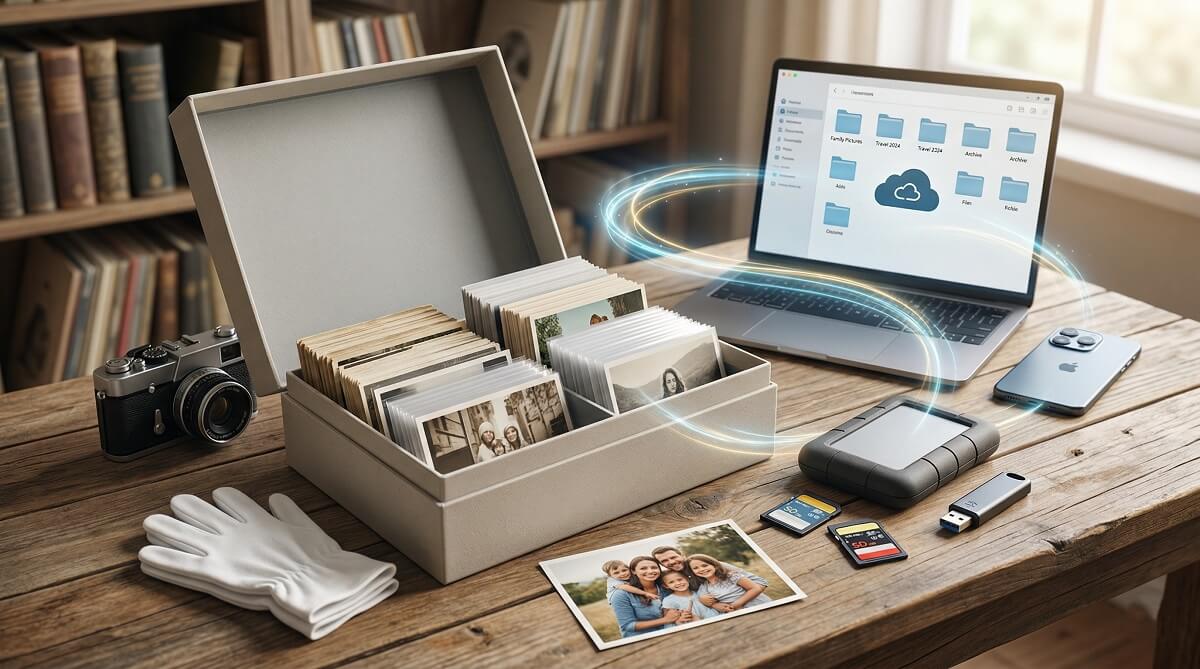
The best way to store photos follows the 3-2-1 rule: keep three copies of your photos, stored on two different types of storage, with at least one copy somewhere outside your home. In practice, this means your phone or computer, an external hard drive, and a cloud backup service working together.
For most people, the setup looks like this: turn on Google Photos or iCloud auto-backup on your phone, pick up a 2TB portable hard drive for around $50-70, and consider adding Backblaze for $99/year to back up everything automatically. For old family print photos, store them in acid-free archival boxes away from heat, humidity, and direct light — and ideally scan them too.
You don’t need to implement all of this at once. One backup layer today beats a perfect system you never build.
Who Should Read This Guide
This guide is for you if:
- Your phone photos have never been backed up anywhere
- You’ve inherited a box of old family prints and aren’t sure what to do with them
- You lost photos when a phone or computer crashed — and don’t want it to happen again
- You’re paying for cloud storage but aren’t sure you need it
- You’re a casual photographer looking for a simple, reliable system
You can skip some sections if:
- You already have an active cloud + local backup system running smoothly
- You’re a professional photographer with a Lightroom/NAS workflow — this guide skews toward regular consumers
The 3-2-1 Rule: Why One Copy Is Never Enough
Hard drives fail. Not maybe — they definitely fail. Backblaze, which operates nearly 300,000 drives in its data centers, found that the annual failure rate for hard drives in 2024 was 1.57%, per their 2024 drive stats report. Consumer drives stored in drawers, dropped on floors, and moved around regularly don’t fare better.
Phones get stolen, lost, and dunked in water. Cloud storage services change their terms — Google Photos ditched free unlimited storage in 2021, forcing millions of users to suddenly start paying. Fire and flooding are rare but they do happen, and if all your photos are in one place, they’re all gone at once.
The 3-2-1 backup rule solves all of this:
- 3 copies of your photos total
- 2 different types of storage (for example, your computer and an external drive)
- 1 copy offsite — meaning somewhere physically separate from your home (a cloud service, or a drive kept at a relative’s place)
You don’t need to be a tech person to follow this. Once you set it up, it mostly runs itself.
Digital Photo Storage: Your Four Options
There’s no single right answer here. The best option depends on how many photos you have, how much you want to spend, and how hands-off you want the process to be.
Option 1 — Cloud Storage (Most Convenient)
Cloud backup is the easiest to set up: turn it on, and your photos upload automatically whenever you’re on Wi-Fi. No drives to plug in, no monthly transfers. Access your pictures from any device, anywhere.
The trade-off is cost. Every major cloud service offers a small amount of free storage, but phone cameras are now shooting 12-24 megapixel images and 4K video, so that free tier fills up faster than most people expect.
Here’s how the major services compare for photo storage in 2026:
| Service | Free Storage | 100GB | 200GB | 2TB | Best For |
|---|---|---|---|---|---|
| Google Photos | 15GB* | $2.99/mo | $2.99/mo | $9.99/mo | Android users, Google ecosystem |
| iCloud Photos | 5GB | — | $2.99/mo | $9.99/mo | iPhone users, Apple ecosystem |
| Amazon Photos | Unlimited (Prime) | — | — | Included with Prime | Amazon Prime members |
| Backblaze | — | — | — | $99/yr (entire computer) | Full computer + external drive backup |
| Flickr | 1,000 photos | $8.25/mo | — | $8.25/mo (unlimited) | Photography enthusiasts |
*Google’s 15GB is shared across Gmail, Google Drive, and Google Photos. iCloud’s 5GB is shared across iPhone backups and all iCloud services. Sources: Google One, Apple Support, Amazon Photos.
If you have Amazon Prime, use Amazon Photos. It’s the only service offering unlimited full-resolution photo storage at no additional cost. Prime costs $139/year anyway — the photo backup is free on top of that. You do get only 5GB for videos, but for the majority of people storing phone snapshots, Amazon Photos is the best value available.
One warning worth noting: Google Photos ended free unlimited storage in 2021. If your backup plan relies on any single cloud service’s free tier, understand that policies can change.
Option 2 — External Hard Drive (Best Value, Full Control)
An external hard drive is the workhorse of photo storage. You pay once, you own it, and there’s no monthly bill. A 2TB portable hard drive from Seagate or WD runs $50-70 at most major retailers — that’s enough space for roughly 500,000 high-resolution JPEG photos.
A portable SSD costs more upfront but offers better durability since there are no moving parts. The Samsung T7 2TB runs around $125-130 at Amazon, but it transfers files faster and handles bumps and drops better than a spinning HDD.
The one catch: you have to remember to plug it in. Most photographers and backup-savvy users recommend a monthly routine — plug in the drive, sync your new photos, then put it back in a safe spot. Some people keep two drives and alternate, storing one offsite.
For organization, a simple date-based folder system works for most people: create a main folder for each year (2024, 2025, 2026), then subfolders inside by month or event. Something like 2025 > 05-May > Beach Trip is easy to navigate years later.
Option 3 — NAS (For Households with Large Collections)
A NAS (Network Attached Storage) is a small home server that lives on your Wi-Fi network. Think of it as a personal cloud that you own and control. You can access it from any device in your house, set up automatic backups from multiple devices, and store tens of thousands of photos without a subscription. If you’re still weighing drives, to find the right fit before committing to a NAS.
Popular options like the Synology 2-bay NAS start around $300-400 for the unit, plus the cost of drives. The setup isn’t difficult, but it’s not plug-and-play either. If you’re comfortable installing a router, you can probably handle a NAS. If technology tends to frustrate you, stick with an external hard drive and cloud backup instead.
Option 4 — Printing (The Backup That Never Needs a Charger)
Nobody thinks of printed photos as a backup strategy, but they might be the most durable format of all. Quality photo prints on archival paper can last 100 years or more with proper storage.
Digital files face a different kind of risk: the formats change. The file you save today might be unreadable by the software in 2080. Photos printed on paper don’t have that problem — your great-grandchildren will be able to look at them without needing a password or a subscription.
like Nations Photo Lab, Shutterfly, and Chatbooks make ordering prints or photo books straightforward. Printing isn’t a replacement for digital backup, but it’s a meaningful complement — especially for your most important images.
How to Organize Your Photos So You Can Actually Find Them
Backing up photos is only half the job. If you can’t find a specific picture when you need it, the backup is almost useless.
Two systems work well for most people:
Date-based: Organize by year, then month. Simple and automatic — your phone or camera timestamps every photo, so sorting by date takes no extra effort. Works best for high-volume shooters who don’t want to think too hard about filing.
Event-based: Name folders by occasion — “2024 Hawaii Trip,” “Emma’s 3rd Birthday,” “Thanksgiving 2025.” More work upfront, but much easier to browse later. Works best if you have memorable occasions rather than a constant stream of daily snapshots.
A hybrid approach works best: use year folders as the main structure, then name notable events inside them. Most people end up with something like 2025 > 08-Emma Birthday > [photos] and 2025 > 11-November [general monthly photos].
Before you archive, cull. Delete the blurry shots, the accidental ones, and the duplicates (everyone takes 12 near-identical photos of the same sunset). Trimming 30% of your photos before archiving makes the whole collection more navigable and reduces storage costs over time.
A monthly photo dump habit works well: at the end of each month, move photos from your phone to your external drive and cloud service. It takes 10-15 minutes, keeps storage manageable, and prevents the overwhelming pile that builds up when you ignore it for two years.
How to Store Old Print Photos So They Last Generations
Old family photographs are irreplaceable. The ones found in shoe boxes in attics tend to fade, yellow, and stick together over time. The ones kept in cool, dry, dark conditions survive remarkably well.
Here’s what destroys prints: heat, humidity, light, and the acid in regular paper and plastic. Most common household storage — shoeboxes, manila envelopes, magnetic photo albums — contains acid that slowly eats away at photographs over decades.
The Library of Congress preservation guidelines specify that archival storage materials must be acid-free, lignin-free, and have a neutral pH between 7 and 9.5. Lignin is a compound found in wood pulp paper. As it breaks down over time, it generates acid — which then migrates into your photos and accelerates their decay.
What to buy: Look for archival photo boxes labeled “acid-free” and “lignin-free” at art supply stores, Amazon, or The Container Store. For especially valuable or fragile photos, use individual archival Mylar or polypropylene sleeves — one photo per sleeve.
What to avoid:
- Magnetic photo albums (the sticky pages cause discoloration and trap photos permanently)
- Regular cardboard shoeboxes (full of acid)
- Clear plastic bags or regular plastic sleeves (PVC plastic off-gases chemicals that damage photos)
- Attics and basements (temperature and humidity swings are extreme)
Where to store them: A bedroom closet on an upper floor is close to ideal — climate-controlled, protected from flooding, and away from direct sunlight. The Library of Congress recommends keeping photos below 75°F.
Labeling: Write on the back of photos only with a soft No. 2 pencil — lightly, around the edges, never in the center. Ballpoint pens and permanent markers can damage the photo surface over time. Write who is in the photo, where it was taken, and roughly when. Future generations will thank you.
How to Digitize Old Family Print Photos
Even with perfect physical storage, prints are vulnerable to fire, flooding, and time. Digitizing your old family photos creates a backup that can survive nearly anything — and makes sharing with family members dramatically easier.
Three ways to get it done:
Flatbed scanner at home: A decent photo scanner runs $80-150 (Epson’s Perfection V39 is a popular entry-level option). This gives you the most control over quality and costs nothing per scan after the initial purchase. The trade-off is time — scanning several hundred photos by hand takes hours.
Smartphone scanner apps: Free apps like Google PhotoScan or Adobe Scan can photograph prints reasonably well. Quick and easy for a handful of photos, but quality won’t match a flatbed scanner for archival purposes.
Mail-in digitization services: Companies like Legacybox and ScanMyPhotos handle the scanning for you. Legacybox charges $59.98 for a starter kit covering 50 photos, while bulk 4×6 scanning starts at $0.07 per photo. You send them your originals, they scan and return them within 3-4 weeks. For large collections you’d rather not scan yourself, it’s a reasonable investment.
Once your photos are digitized, treat those digital files the same way as any other digital photos: apply the 3-2-1 rule, back them up to cloud storage and an external drive.
Frequently Asked Questions
What is the safest way to store photos long-term?
Follow the 3-2-1 rule: three copies of your photos, on two different storage types, with one copy stored offsite. The combination of a cloud backup, an external hard drive, and printed copies of your most important photos covers every realistic risk scenario — hardware failure, theft, fire, and even cloud service policy changes.
Is Google Photos still a good place to store photos?
Yes, with caveats. Google Photos offers 15GB free (shared with Gmail and Drive), and the interface for browsing and searching your photos is genuinely excellent. However, free unlimited photo storage ended in 2021. If you have a large collection, you’ll need to pay for Google One storage — $2.99/month for 100GB, $9.99/month for 2TB — or supplement with a free option like Amazon Photos if you have Prime.
How long do external hard drives last?
Consumer HDDs are generally rated for 3-5 years of regular use, though many last longer. Backblaze’s 2024 data shows an annual failure rate of 1.57% across their entire fleet of data center drives — but consumer drives used occasionally at home are a different environment. SSDs (solid-state drives) tend to last longer because they have no moving parts. A reasonable rule of thumb: replace your backup drive every five years, or immediately after any drop or impact.
Does Amazon Prime include free photo storage?
Yes. Amazon Photos provides unlimited full-resolution photo storage at no extra charge for Amazon Prime members. Video storage is capped at 5GB on the free tier. If you already pay for Prime ($139/year or $14.99/month), this is probably the best free photo backup available. Your photos stay full-resolution, and you can access them from any device.
What’s the best free photo backup for iPhone users?
iCloud is the most seamless option since it’s built into iOS — but the free tier is only 5GB, which fills up fast. If you have Amazon Prime, Amazon Photos gives you unlimited free photo storage and works on iPhone too. Google Photos also works on iPhone and gives you 15GB free, though that storage is shared with your Google account.
How do I safely store old inherited family photos?
Keep them in acid-free, lignin-free archival photo boxes in a cool, dry room — an upstairs bedroom closet works well. Avoid attics, basements, and anywhere with temperature swings or high humidity. Use individual archival sleeves for fragile or especially precious prints. Label the back of each photo lightly with a No. 2 pencil (never a ballpoint pen), noting who’s in the photo, where it was taken, and approximately when.
Can I use a USB flash drive to store photos long-term?
Flash drives are fine for temporary storage or sharing files, but they’re not reliable for long-term archiving. They’re more prone to corruption than external hard drives, and easy to misplace. Use them for transfers, not as a primary backup. A dedicated or cloud service is far more dependable for keeping pictures safe for years.
What is the 3-2-1 backup rule?
The 3-2-1 rule means keeping three total copies of your files: two copies on different local storage devices (like your computer and an external hard drive), and one copy stored somewhere outside your home (like a cloud service). This protects against drive failure, theft, and local disasters like fire or flooding all at once.
Start With One Step
The biggest mistake most people make is waiting until they have a perfect system before doing anything. You don’t need all four layers of backup running perfectly. You need one more copy than you have right now.
If you have Amazon Prime, turn on Amazon Photos today — it takes about two minutes and your pictures start backing up immediately. If you don’t have Prime, Google Photos with 15GB free is a solid starting point. Once that’s running, picking up a gives you a physical copy you actually own — no subscriptions, no monthly bills.
For old print photos, one archival photo box and an afternoon of sorting gets you most of the way there. The photos that survived in your grandmother’s closet did so because they were kept cool, dry, and out of the light. That’s all you need to replicate.
