


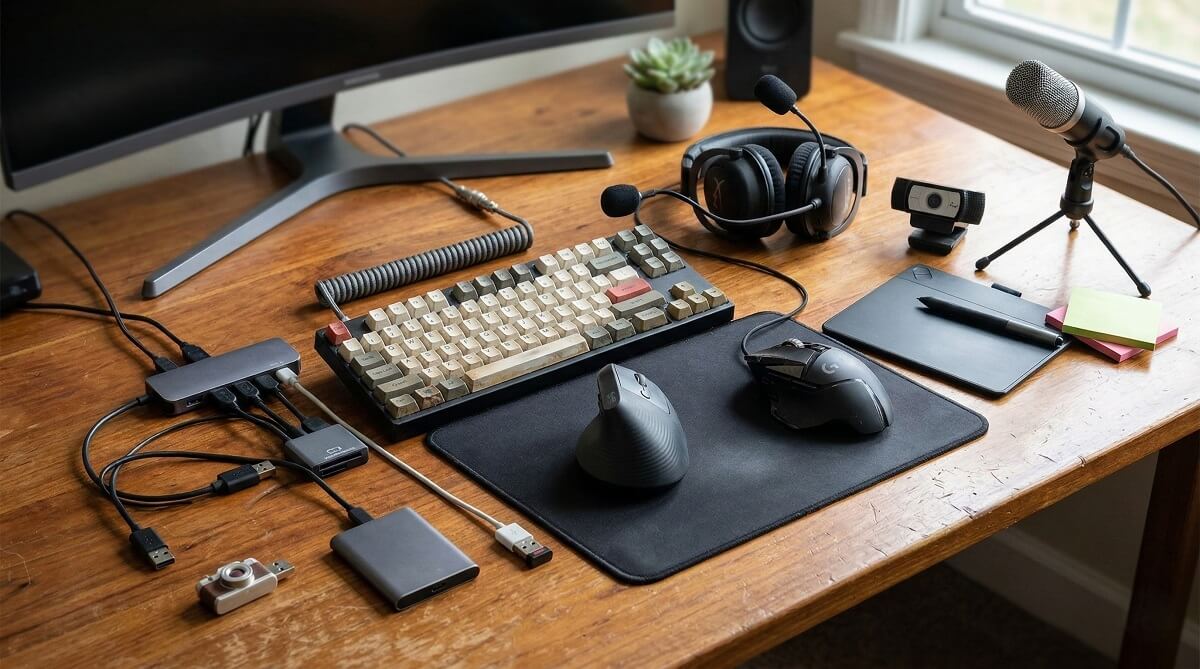
Most organizations prohibit personally owned peripherals like keyboards, mice, USB drives, printers, and external hard drives on company-provided computers unless you have explicit authorization from your IT department. This isn’t arbitrary—these policies exist to prevent security risks including malware infections, unauthorized data transfer, and network vulnerabilities. According to 2025 cybersecurity data, 48% of organizations suffered data breaches from personal devices despite having policies in place.
Whether you can use your own peripherals depends entirely on your workplace IT security policy. Government agencies and organizations handling sensitive data typically enforce strict restrictions, while private companies may allow approved device lists or formal BYOD (Bring Your Own Device) programs. If you’re setting up a or working remotely, understanding these policies is crucial. Before connecting any personal device to work equipment, consult your IT security office. The consequences of unauthorized use range from automatic device blocking to policy violations and, in severe cases, disciplinary action.
This guide explains which peripherals are generally safe versus prohibited, how to request approval, and what security measures you need to understand. We’ll also cover different policy types across government, healthcare, and private sectors.
Quick Reference: What’s Allowed and What’s Not
✅ Generally SAFE to Use (With IT Approval)
- Wired keyboards and mice — Non-wireless models from reputable manufacturers (Logitech, Microsoft, Dell) through direct USB connection
- Display monitors — Connected via HDMI, DisplayPort, DVI, or VGA (video-only, no USB data connections)
- Webcams for video conferencing — IT-approved models for remote work (certain Logitech models often pre-approved)
- Headphones and headsets — Audio-only connections via 3.5mm jack or approved Bluetooth models
❌ Generally PROHIBITED (High Security Risk)
- USB flash drives and external hard drives — Highest data exfiltration risk; 51% of malware is designed for USB devices according to 2024 industry reports
- Wireless keyboards and mice — Vulnerable to radio frequency interception and keystroke logging attacks
- Personal printers — Create network entry points and retain sensitive documents in memory
- Smartphones connected via USB for data transfer — Charging-only mode may be allowed, but data sync is typically prohibited
- External storage devices with unknown history — Used or gifted devices pose supply chain security risks
🔍 Requires Case-by-Case IT Approval
- Encrypted external drives — For authorized backup purposes only, must meet encryption standards
- Bluetooth peripherals — Require security assessment of Bluetooth version, manufacturer, and pairing process
- Personal laptops connecting to company networks — Usually requires VPN and Mobile Device Management (MDM) enrollment
- USB hubs and docking stations — Depends on manufacturer and whether they include network connectivity
Understanding Personally Owned Peripherals and Security Risks
What Are Personally Owned Peripherals?
Personally owned peripherals are any external devices you own that connect to computers. These fall into several categories:
- Input devices: Keyboards, mice, trackpads, drawing tablets, game controllers
- Storage devices: USB flash drives, external SSDs, hard drives, SD cards, memory cards
- Output devices: Printers, monitors, speakers, projectors
- Connectivity devices: USB hubs, docking stations, adapters, dongles
- Mobile devices: Smartphones and tablets when connected for data transfer (not just charging)
The term “peripheral” covers any device that isn’t part of the computer’s core hardware. When we talk about personally owned peripherals in a workplace context, we’re specifically concerned with devices you might bring from home to use with company-provided equipment.
Why Organizations Restrict Personal Peripherals
Security teams worry about personal peripherals for legitimate reasons. Here’s what keeps IT departments up at night:
Malware introduction: Infected devices can compromise entire networks. According to 2024 cybersecurity reports, 51% of malware attacks are designed specifically for USB devices—a nearly six-fold increase from just 9% in 2019. Even more concerning, 82% of this malware is capable of causing disruption to industrial operations or business systems.
Data exfiltration: USB storage devices make copying sensitive files trivially easy. An employee can copy gigabytes of confidential data in seconds, leaving no audit trail. This is why CISA (Cybersecurity & Infrastructure Security Agency) explicitly recommends keeping personal and business USB drives separate and not using personal USB drives on work computers.
Keystroke logging: Compromised keyboards can capture every password, email, and document you type. Security researchers discovered vulnerabilities like KeySniffer that allow hackers to intercept all keystrokes from wireless keyboards that don’t encrypt their radio communication—and they can do it from several hundred feet away.
Network access: Devices may provide unauthorized entry points to corporate systems. Printers, for example, often connect to networks and can become attack vectors if they’re not properly secured and monitored.
Compliance violations: Industries handling sensitive data must comply with regulations like HIPAA (healthcare), FISMA (federal government), GDPR (European data), and financial industry standards. The HIPAA Security Rule, for instance, requires regulated entities to have strict policies governing the receipt, removal, and movement of hardware and electronic media containing protected health information.
Common Workplace IT Security Policies
Organizations typically adopt one of four peripheral security policy types:
Zero-tolerance policies: No personal devices allowed whatsoever. This is standard for government agencies handling classified information, defense contractors, healthcare organizations with patient data, and financial institutions. If you work in these sectors, the answer to “which personally owned peripherals can I use” is almost certainly “none.”
Approved device lists: IT maintains a catalog of pre-vetted peripherals employees can purchase and use. This balances security with employee comfort and productivity. Devices on the approved list have passed security assessments and are known to be compatible with company systems.
BYOD programs: Formal Bring Your Own Device programs with security requirements. According to 2025 data, 82% of organizations now have BYOD programs. These typically require enrollment, security software installation, and agreement to remote wipe capabilities. Samsung research estimates companies save about $341 annually per employee through BYOD programs, while 68% of businesses report productivity increases.
Request-based systems: Case-by-case approval after risk assessment. You submit a formal request, IT evaluates the specific device, and they grant or deny permission based on security review.
Which Personal Peripherals Are Usually Allowed?
Low-Risk Peripherals (Often Approved)
Wired Keyboards and Mice
Wired input devices are generally safer than wireless alternatives because they use direct physical connections with minimal firmware and no risk of wireless interception. However, even these require IT department permission.
Why they’re safer: The direct USB connection means there’s no radio signal to intercept. They have simpler firmware with fewer attack surfaces compared to wireless devices. There’s no battery or charging cable that could conceal malicious hardware.
Requirements: Most IT departments prefer devices that are new and sealed from trusted manufacturers like Logitech, Microsoft, Dell, or HP. For more on selecting quality , check our reviews section. Used keyboards and mice from unknown sources raise concerns about firmware tampering or hidden keyloggers.
Still, wired doesn’t mean risk-free. Security researchers have demonstrated firmware exploits that can turn even wired keyboards into attack tools. This is why approval is still necessary.
Monitors and Displays
External monitors are usually approved because they handle only video signals with no data transfer capability—but only when connected the right way. For more on choosing the right display, check our .
Safe connection types: HDMI, DisplayPort, DVI, and VGA ports transmit video only. These connections don’t allow bidirectional data transfer that could compromise security.
Avoid: USB-C monitors with data passthrough capabilities. Many modern monitors include USB hubs, webcams, microphones, and Ethernet connections. These features turn a simple display into a potential security risk because they create data pathways beyond just video.
Corporate preference: IT departments typically prefer monitors without built-in cameras, microphones, or USB hubs. A simple display that just shows images is much easier to approve than a multifunctional monitor.
Audio Devices
Headphones and headsets for video conferencing are often approved, but the connection method matters.
Headphones with 3.5mm jacks: Traditional audio jacks are generally allowed because they’re audio-only with no data transfer capability. You’re just sending and receiving sound.
Bluetooth headphones: These may require IT approval for pairing. Some organizations pre-approve specific models known to have secure Bluetooth implementations. The approval process typically involves verifying the Bluetooth version (newer versions have better security) and ensuring the manufacturer has a good security track record.
Webcams: Video conferencing cameras are often necessary for remote work. IT departments frequently pre-approve specific models like the Logitech C920 or C922 that have been vetted for security and compatibility. If you’re comparing , check which models are commonly approved by IT departments.
High-Risk Peripherals (Usually Prohibited)
USB Storage Devices
USB flash drives and external hard drives face near-universal prohibition in secure environments, and for good reason.
Why they’re dangerous: They represent the fastest method for data theft. An employee can copy thousands of confidential files in minutes. They can contain hidden malware and rootkits that automatically install when connected. They leave minimal audit trails—IT can’t easily track what files were copied to them. They’re difficult to monitor and control with standard security software.
The Department of Defense has prohibited the use of removable, flash-type drives on government computers since 2008. The policy has evolved but core restrictions remain because the risks haven’t diminished.
CISA’s guidance is unambiguous: do not use personal USB drives on work computers. If you find an unknown USB drive, give it to security personnel—don’t plug it in to see what’s on it or try to identify the owner. This is because USB drops are a common social engineering tactic where attackers leave infected drives in parking lots hoping curious employees will plug them in.
Wireless Keyboards and Mice
Wireless input devices face heightened scrutiny due to multiple documented vulnerabilities.
Radio frequency interception: Researchers discovered the KeySniffer exploit that targets wireless devices without encryption. Attackers can intercept keystrokes from hundreds of feet away, capturing everything you type including passwords and confidential communications.
MouseJack vulnerability: This class of vulnerabilities affects the majority of wireless, non-Bluetooth keyboards and mice that use USB dongles. Security researchers demonstrated that attackers can compromise computers from up to 100 meters away using devices costing as little as $15. The attack transmits specially-crafted radio signals that take control of the target computer without physical access.
Bluetooth pairing vulnerabilities: Even Bluetooth devices aren’t immune. Various pairing exploits allow attackers to intercept the connection or inject malicious commands.
Firmware exploits: Wireless peripherals have more complex firmware than wired devices, creating additional attack surfaces.
The wireless peripheral industry has responded to these concerns. Logitech introduced Logi Bolt in 2022, a new standard for secure wireless connections that improves encryption, wireless reliability, and connection strength. However, many organizations still prefer wired alternatives or restrict wireless peripherals to specific approved models that have undergone security testing.
Personal Printers
Printers are often overlooked security risks that IT departments restrict carefully.
Network connectivity: Printers connect to networks, creating potential entry points for attackers. A compromised printer can become a launching point for broader network attacks.
Document retention: Printers cache print jobs in memory. Sensitive documents may remain stored on the printer’s hard drive long after printing, accessible to anyone who knows how to retrieve them.
Firmware vulnerabilities: Like any networked device, printers receive firmware updates. Without proper security management, they can have exploitable vulnerabilities.
Audit challenges: Organizations need to track who printed what for compliance and security reasons. Personal printers bypass these logging systems.
Government vs. Private Sector Peripheral Policies
Federal Government and Military Standards
If you’re asking “which of the following personally owned peripherals can you use with government furnished equipment,” the short answer is: very few, and only with explicit authorization.
Department of Defense policy is specific and strict. According to official DoD guidance:
Permitted peripherals with Government Furnished Equipment:
- Monitors connected via VGA, DVI, HDMI, or DisplayPort (video-only connections)
- Wired keyboards and mice through USB connection
- USB hubs (without network connectivity)
- Headphones and headsets through USB ports
Prohibited peripherals:
- Bluetooth and other wireless external computer peripherals
- Monitors connected via USB
- Any personally-owned or non-organizational removable media
- Personally or privately-owned headsets, microphones, desktop telephone units, and webcams in DoD secure spaces
The policy is unambiguous: “Personnel should not use any personally owned/non-organizational removable media on their organization’s systems.” Only Government-furnished or Government-approved equipment should be used to process Controlled Unclassified Information (CUI), including Personally Identifiable Information (PII).
These restrictions follow NIST (National Institute of Standards and Technology) guidelines, particularly NIST Special Publication 800-53, which specifies security controls for federal data protection and remote access. Related standards include NIST SP 800-124 (Mobile Device Security), NIST SP 800-37 (Risk Management Framework), and NIST SP 800-171 (Protecting Controlled Unclassified Information).
Healthcare and HIPAA-Regulated Organizations
Healthcare organizations must comply with HIPAA Security Rule requirements for protecting electronic Protected Health Information (ePHI).
The regulations require specific device and media controls. Organizations must have policies governing the receipt, removal, and movement of hardware and electronic media containing ePHI into and out of facilities. This includes procedures for final disposition of ePHI and the media it’s stored on.
Key requirements for personally owned devices:
- End-to-end encryption is recommended for all mobile devices accessing ePHI
- Virtual Private Network (VPN) use for secure connections even on public networks
- Remote disabling capability installed on all mobile devices
- Centralized security management to ensure devices comply with security policies
- Configuration requirements verified before device approval
Most healthcare organizations use approved peripheral lists and require formal authorization before employees can use personal devices with systems containing patient data. The approval process typically involves security assessments and encryption verification.
Private Sector and Tech Companies
Private companies generally have more flexibility than government agencies, though security remains important.
BYOD programs: Many tech companies and forward-thinking organizations have embraced BYOD as a productivity tool. These programs typically include Mobile Device Management (MDM) software, approved peripheral catalogs, risk-based assessments for unusual requests, and employee-owned device stipends. For more on creating a productive workspace with the right equipment, see our .
Benefits driving adoption: Research shows workers using their own devices gain about an hour of productive work time per day. Companies save on hardware costs—Samsung estimates $341 annually per employee. Employee satisfaction increases when people can use familiar, comfortable equipment.
Security tradeoffs: Private companies balance security with productivity differently than government agencies. They may accept higher risk levels in exchange for increased employee efficiency. However, they still face real consequences—48% of organizations suffered data breaches from personal devices in 2025 despite having policies in place.
How to Get Approval for Personal Peripherals
Step 1: Review Your Organization’s IT Security Policy
Before requesting anything, understand what your company allows.
Where to find policies: Check your employee handbook, company intranet, or IT department portal. Look for sections titled “Acceptable Use Policy” (AUP), “Device Security Requirements,” “BYOD Policy,” or “Peripheral Device Guidelines.”
Who to contact: Your IT security office, IT helpdesk, or information security team can clarify policies and explain the approval process.
What to look for: Does your organization have a pre-approved device list? Is there a formal BYOD program? What’s the process for requesting exceptions? Are there different rules for remote workers?
Step 2: Submit a Formal Request
If personal peripherals require approval, you’ll typically need to submit a written request with specific information:
Device details: Exact manufacturer, model name, and model number (for example, “Logitech MX Master 3S Wireless Mouse, Model M-R0084” not just “Logitech mouse”). Include where you purchased it and when.
Reason for request: Explain why you need this specific device. Common acceptable reasons include ergonomic needs (doctor-recommended equipment for repetitive strain), accessibility requirements (specialized input devices for disabilities), remote work necessity (home office setup), and productivity enhancement (for example, larger monitors for detailed work).
Usage details: Describe how you’ll use the device, where it will be used (office, home, both), and whether it will connect to company networks.
Security information: Note the device’s security features—does it have encryption, what firmware version, does it support secure pairing, is it brand new or used?
Step 3: Security Assessment
IT will evaluate your request based on several factors:
Device vulnerabilities: Does this device type have known security issues? Are there documented exploits? Has the manufacturer issued security patches?
Manufacturer reputation: Is this from a trusted manufacturer with a good security track record? Do they provide regular firmware updates? Have they had security incidents in the past?
Connection security: What type of connection does it use? Does it have network access capability? Can it transfer data bidirectionally?
Encryption and authentication: Does it encrypt communications? Does it support strong authentication? Can it be uniquely identified and tracked?
The assessment may take anywhere from a few days to a few weeks depending on the device complexity and your organization’s processes.
Step 4: Device Registration and Monitoring
If approved, expect these requirements:
Registration: IT will log the device serial number, your employee ID, and approval date. This creates an audit trail.
Network access control: The device may need to be enrolled in your organization’s Network Access Control (NAC) system to connect to company networks.
Security software: For devices with processing capability (like personal laptops), IT may install Endpoint Detection and Response (EDR) agents or other monitoring software.
Regular audits: Expect periodic security reviews to ensure the device still meets security standards and hasn’t been compromised.
Alternatives to Personal Peripherals
Before going through the approval process, consider these alternatives:
Request company-provided equipment: Submit an IT ticket explaining why you need an ergonomic keyboard, second monitor, or specialized device. Many organizations will purchase equipment for legitimate business or health needs.
Use the corporate equipment catalog: Check if your company has pre-approved devices you can order. These have already passed security review.
Borrow temporary equipment: Some organizations maintain loaner equipment for short-term needs. Need a presentation remote for a conference? Ask about borrowing one.
Remote desktop solutions: Instead of connecting personal devices directly, use remote desktop software to access work systems. This keeps personal and work environments separated.
Common Scenarios and Practical Answers
“Can I Use My Personal USB Drive to Transfer Work Files?”
Short answer: Almost certainly no.
Why: USB drives represent the highest data theft risk and primary malware vector. Remember those statistics—51% of malware is designed for USB devices. Organizations can’t risk you accidentally introducing malware or intentionally or unintentionally copying sensitive data.
Alternatives: Use cloud storage services your company approves (OneDrive for Business, Google Workspace, Dropbox Business). Transfer files through secure file transfer services via company VPN or SFTP. Email attachments work for small files if your organization has email encryption enabled. Request access to company-provided USB drives that are encrypted and logged.
“Can I Charge My Phone via USB on My Work Computer?”
Short answer: Maybe, depending on your company’s specific policy.
Important distinction: There’s a significant difference between charging-only mode (just drawing power) and data transfer mode (syncing files, backing up, etc.). Charging only is usually allowed. Data transfer is usually prohibited.
Best practice: Use a wall charger or USB power adapter instead of your computer’s USB port. This eliminates any ambiguity and avoids potential security issues like juice jacking, where malicious charging stations or cables can compromise devices.
When you must use computer USB: Make sure your phone is set to “charging only” mode. On iPhones, don’t click “Trust This Computer.” On Android, select “Charging only” or “No data transfer” when the connection options appear.
“Can I Use My Bluetooth Mouse and Keyboard?”
Short answer: Only if explicitly approved after security review.
What IT will consider: Which Bluetooth version does it use (newer versions like Bluetooth 5.0+ have better security)? What’s the manufacturer’s security track record? How does the pairing process work? What’s the range and interception risk? Has this specific model passed security testing?
More likely to be approved: Recent models from major manufacturers (Logitech, Microsoft, Apple) with documented security features. Devices using newer security standards like Logi Bolt. Equipment with encrypted communication and secure pairing.
Less likely to be approved: Generic or off-brand wireless peripherals. Older models with known vulnerabilities. Devices using unencrypted 2.4GHz connections.
“What If I Work Remotely Full-Time?”
Answer: Remote work location doesn’t automatically change IT security policies. The same rules generally apply whether you’re in the office or working from home.
Special considerations for remote workers: Your home network security may be evaluated as part of peripheral approval. VPN use is typically mandatory for all work activities regardless of device. Your company may provide a full peripheral kit for your home office rather than having you use personal equipment. Some organizations have slightly more lenient BYOD programs for remote workers, but security requirements still apply.
According to 2025 data, 48% of the global workforce works remotely at least part-time (more than double the 20% in 2020), and 42% of workers log in remotely at least once weekly. This widespread remote work has actually increased security concerns rather than relaxing them, because home networks and personal devices expand the attack surface.
Remote workers are 3× more likely to accidentally expose data than office employees, costing organizations an average of $17.4 million annually. This is why security policies remain strict even for remote arrangements.
“What Happens If I Connect an Unauthorized Device?”
Potential consequences:
Automatic blocking: Network Access Control (NAC) systems may immediately detect and block unauthorized devices. You won’t be able to use it even if you connect it.
Security alerts: IT security teams receive automated alerts when unknown devices connect. This triggers an investigation into who connected what and why.
Policy violation: You may receive a written warning for violating acceptable use policies. The severity depends on whether it appears intentional or accidental and whether any data was actually compromised.
Disciplinary action: Consequences range from mandatory security training to written warnings to suspension or termination in serious cases. If you work with classified or highly sensitive data, violations can be severe.
Legal liability: If a data breach occurs due to your unauthorized device and customer data is exposed, you could face legal consequences beyond just losing your job. Organizations have sued employees who caused breaches through policy violations.
The takeaway: it’s not worth the risk. Follow your organization’s approval process.
Peripheral Risk Levels: Comparison Guide
This table summarizes typical risk assessments for different peripheral types. Your organization’s specific policies may vary.
| Peripheral Type | Risk Level | Typical Approval | Key Concerns | Recommended Alternative |
|---|---|---|---|---|
| Wired Keyboard | Low-Medium | Often approved | Firmware exploits, potential keystroke logging | Company-provided ergonomic keyboards |
| Wired Mouse | Low | Often approved | Firmware vulnerabilities (minimal) | Company-provided equipment |
| USB Flash Drive | CRITICAL | Almost never | Malware, data theft, zero audit trail | Cloud storage, secure file transfer |
| External HDD/SSD | CRITICAL | Rarely (if encrypted) | Large-scale data exfiltration | Company NAS, cloud backup |
| Wireless Keyboard/Mouse | High | Sometimes | RF interception, MouseJack, pairing exploits | Wired alternatives, approved models only |
| Bluetooth Headset | Medium | Often approved | Audio interception, pairing vulnerabilities | Wired headphones, company-provided |
| Personal Printer | High | Rarely | Network access, document caching | Corporate print services |
| Smartphone (data mode) | High | Via MDM only | Data leakage, malware bridging | Work-issued phone, separate devices |
| Monitor (HDMI/DP) | Low | Usually approved | Minimal (video-only) | Company-provided displays |
| Monitor (USB-C) | Medium-High | Sometimes | Data passthrough, network access | Video-only connection modes |
| Webcam | Medium | Sometimes | Video hijacking, firmware exploits | Built-in laptop camera, approved models |
| USB Hub | Medium-High | Sometimes | Network access, power injection attacks | Company-provided docking stations |
Best Practices for Peripheral Security
If Your Device Gets Approved
Before Connecting
- Scan for malware: If it’s a storage device, scan it on a personal computer with updated antivirus first
- Update firmware: Install the latest manufacturer firmware to patch known vulnerabilities
- Register with IT: Complete all required registration paperwork before first use
- Document serial numbers: Keep records of device serial numbers, purchase receipts, and approval dates
While Using
- Single-user only: Don’t share your approved device with coworkers
- Work use only: Don’t connect the device to other computers (work or personal) once it’s approved for company use
- Report issues immediately: If the device behaves unexpectedly or you suspect compromise, disconnect it and contact IT immediately
- Physical security: Keep the device secure when not in use; don’t leave it where others can tamper with it
Ongoing Maintenance
- Accept updates: Install all firmware and security updates promptly when IT approves them
- Annual recertification: Some organizations require yearly reapproval; comply with these requirements
- Report loss or theft: If the device is lost or stolen, report it to IT immediately so they can revoke network access
- Proper decommissioning: When you no longer need the device or leave the company, follow proper checkout procedures
General Device Hygiene
Purchase from Authorized Retailers
Buy peripherals from reputable sources like manufacturer direct, major retailers (Best Buy, Amazon, B&H Photo), or authorized resellers. Avoid counterfeit devices from unknown sellers. Counterfeits may look identical but contain inferior components or even malicious hardware.
Avoid Used Devices from Unknown Sources
Don’t use refurbished devices from unknown sellers. Don’t accept “gifts” of USB drives or peripherals from unknown parties—these are common social engineering attacks. Be cautious with devices found in public places.
Keep Documentation
Retain original packaging, receipts, and warranty information. Document purchase date and source. Save approval emails and registration confirmations.
Frequently Asked Questions
Which personally owned peripherals can you use with government furnished equipment?
According to Department of Defense policy, you can use monitors connected via VGA, DVI, HDMI, or DisplayPort; wired keyboards and mice through USB; USB hubs; and headphones/headsets through USB ports. However, Bluetooth and other wireless peripherals are prohibited, as are monitors connected via USB and any personally-owned removable media like flash drives. Even permitted peripherals require explicit authorization from your agency’s IT security office. The policy exists to protect classified and sensitive government information from security vulnerabilities.
Can I use my own keyboard and mouse with my work laptop?
It depends on your company’s IT security policy. Wired keyboards and mice from reputable manufacturers like Logitech, Microsoft, or Dell are often approved after a simple IT request, while wireless peripherals may require a more thorough security assessment or be prohibited entirely due to vulnerabilities like MouseJack and KeySniffer. Always check with your IT department before connecting any personal device. Many organizations maintain approved device lists that have already passed security review, making the approval process faster.
Why can’t I use a USB flash drive at work?
USB flash drives are prohibited by most organizations because they represent the fastest and easiest method for data theft and malware introduction. According to 2024 cybersecurity reports, 51% of malware attacks are designed for USB devices, and 82% of that malware can disrupt operations. USB drives leave minimal audit trails, meaning IT can’t track what files were copied. They can contain hidden malicious code that automatically installs when connected. CISA explicitly recommends not using personal USB drives on work computers. Most companies require using cloud storage or secure file transfer services instead.
Are Bluetooth peripherals safe to use with work computers?
Bluetooth peripherals carry security risks including radio frequency interception, pairing vulnerabilities, and documented exploits like MouseJack (affecting wireless USB dongles) and KeySniffer (allowing keystroke capture from hundreds of feet away). Whether they’re allowed depends on your organization’s risk tolerance. Some companies approve specific Bluetooth headsets for video conferencing but prohibit Bluetooth keyboards and mice. If approval is granted, IT typically requires newer Bluetooth versions (5.0+), encrypted communication, and devices from manufacturers with strong security track records like Logitech’s Logi Bolt standard introduced in 2022.
What’s the approval process for using personal devices at work?
Most organizations require submitting a formal request to your IT security office that includes the device type, manufacturer, exact model number, and reason for use. IT conducts a security assessment evaluating firmware vulnerabilities, encryption capabilities, manufacturer reputation, and connection security. The review process can take days to weeks depending on device complexity. If approved, the device is registered with its serial number logged, may be enrolled in Network Access Control systems, and could require security software installation. You’ll likely need to comply with regular security audits to maintain approval.
Can I just charge my phone on my work computer without transferring data?
Many organizations allow USB charging as long as your phone is set to “charging only” mode without enabling data transfer. However, some high-security environments prohibit even this due to juice jacking risks—malicious charging stations or cables that can compromise devices. Best practice is using a wall charger or USB power adapter instead of your computer’s USB port to eliminate ambiguity. If you must use computer USB, ensure your phone is in charging-only mode: on iPhone don’t select “Trust This Computer,” and on Android choose “Charging only” when connection options appear.
What happens if I connect an unauthorized peripheral?
Consequences vary but may include automatic device blocking by Network Access Control systems that detect and prevent unauthorized hardware from connecting; IT security investigation triggered by automated alerts; policy violation warnings that go in your employee record; and disciplinary action ranging from mandatory security training to written warnings to termination depending on severity. If a data breach occurs due to an unauthorized device, you could face legal liability beyond employment consequences. Organizations have sued employees whose policy violations caused customer data exposure.
Do remote workers have different peripheral policies?
Remote work location doesn’t change IT security policies—you still need approval for personal peripherals when working from home. However, remote workers face heightened scrutiny because they’re 3× more likely to accidentally expose data than office employees according to 2025 research. Some organizations provide full peripheral kits for home offices rather than relying on personal equipment. Others have BYOD programs with Mobile Device Management enrollment, VPN requirements, and home network security assessments. With 48% of the global workforce working remotely in 2025 (double the 2020 rate), security policies have become stricter, not more relaxed.
What’s the difference between BYOD and using personal peripherals?
BYOD (Bring Your Own Device) programs are formal policies allowing personal devices—usually smartphones, tablets, or laptops—with strict security requirements like Mobile Device Management (MDM) enrollment, encryption, remote wipe capabilities, and security software installation. As of 2025, 82% of organizations have BYOD programs. Personal peripherals are simpler external devices like keyboards, mice, monitors, and USB drives that typically require less complex approval processes but still need IT authorization. BYOD programs focus on protecting the data on and accessed by your personal device, while peripheral policies focus on preventing those devices from becoming attack vectors or data theft tools.
Are there any peripherals that are always safe to use without approval?
No peripheral is automatically “always safe” without IT approval. Even low-risk devices like monitors or wired keyboards should be approved by your IT department before use. Security policies exist for good reasons—researchers have demonstrated firmware exploits even for simple wired devices, and what seems harmless can introduce unexpected vulnerabilities. The only possible exception might be audio-only headphones with standard 3.5mm jacks in some organizations, but even this varies by policy. Always check with IT first. The approval process exists to protect both you and your organization from security incidents that could have serious consequences.
What security features should I look for in peripherals I want to use at work?
When selecting peripherals you hope to get approved, look for devices from reputable manufacturers with documented security track records (Logitech, Microsoft, Dell, HP); current firmware with regular security updates; encrypted wireless communication for any wireless devices; newer security standards like Logi Bolt for wireless peripherals or Bluetooth 5.0+ for Bluetooth devices; tamper-evident packaging to ensure devices haven’t been modified; and detailed technical documentation that IT can review during security assessment. For detailed , check our recommendations for trusted manufacturers. Avoid generic off-brand devices, used or refurbished equipment from unknown sources, devices with outdated firmware or unsupported models, and peripherals with unnecessarily complex features like USB monitors with built-in hubs when a simple display would suffice.
Before You Connect Any Personal Peripheral
The rules around personally owned peripherals exist to protect both you and your organization from serious security risks. With 48% of organizations experiencing data breaches from personal devices and malware specifically targeting peripherals increasing six-fold in recent years, these policies serve critical security functions.
Take these steps before connecting anything:
- Check your organization’s IT security policy in your employee handbook or company intranet
- Contact your IT security office or helpdesk for guidance on approved devices
- Submit a formal approval request if required, including device details and security information
- Consider company-provided alternatives that have already passed security review
For official guidance on device security, visit CISA (Cybersecurity & Infrastructure Security Agency).
Related resources: Browse reviews and for creating a secure and productive workspace.
