


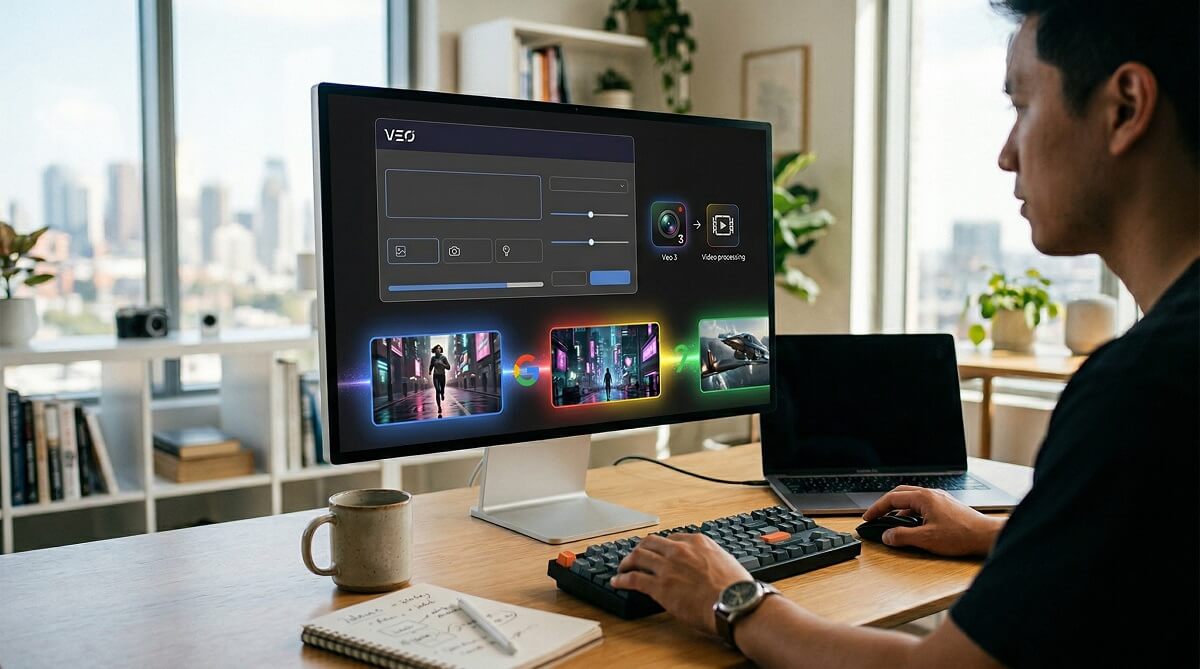
Google’s Veo 3 generates video from text — and the difference between a weak prompt and a strong one is enormous. A vague instruction like “a dog running on a beach” produces something generic. A detailed, structured prompt that specifies the camera angle, lighting mood, and audio texture produces something that looks like it came out of a production studio. That gap is exactly why prompt generators exist.
This guide covers what a Veo 3 prompt generator does, which free tools are worth using in 2026, and how to write prompts from scratch using the same structure the best-performing videos rely on. Whether you’re a social media creator, a marketer building product demos, or someone just getting started with AI video, you’ll find a workflow here that fits.
Should You Use a Veo 3 Prompt Generator?
✅ Best For
- Beginners who don’t know filmmaking vocabulary (dolly shots, depth of field, etc.)
- Creators producing social content at volume who need prompts fast
- Marketers building product demo videos without a video team
- Developers who need structured JSON output for the Vertex AI API
❌ Skip It If
- You already write detailed, structured prompts from memory
- You need highly nuanced narrative scripts that require creative judgment
- You prefer iterating manually with seed variations to discover unexpected outputs
What Is a Veo 3 Prompt Generator?
A Veo 3 prompt generator is a tool — usually a free web app — that helps you build structured text instructions for Google’s Veo 3 AI video model. Instead of staring at a blank text box, you fill in fields or describe your idea in plain language, and the tool outputs a formatted prompt optimized for the way Veo 3 processes input.
There are two main types. Form-based builders ask you to fill in fields for subject, camera angle, lighting, style, and audio separately — then assemble the prompt for you. AI-assisted generators take a plain-language description of what you want and rewrite it in the specific, directive language that Veo 3 responds to best.
Both approaches solve the same core problem: Veo 3 works best when instructions read like a film director’s brief, not a casual description. Most people don’t naturally write that way, and a prompt generator closes that gap.
Where to Access Veo 3 in 2026
Veo 3 is available across five Google platforms, each aimed at a different type of user. Access is tiered by subscription, and the platform you choose determines which version of the model you get.
| Platform | Best For | Plan Required | Model Access |
|---|---|---|---|
| Gemini (web/app) | General consumers | Google AI Ultra ($249.99/mo) | Veo 3 Standard |
| Flow | Filmmakers, storytellers | Google AI Ultra ($249.99/mo) | Veo 3 Standard + editing |
| Google AI Studio | Developers, researchers | Google account (free tier available) | Veo 3 (rate-limited) |
| Gemini API | Developers building apps | API key required; usage-based billing | Veo 3.1 Fast/Standard |
| Vertex AI Studio | Enterprise teams | Google Cloud billing; $0.15–$0.75/sec | Veo 3.1 Fast or Standard |
For most individual creators, the practical entry points are Google AI Pro ($19.99/month, ~1,000 credits, roughly $2.50 per 10-second clip at Fast quality) or Google AI Ultra ($249.99/month) for Standard quality. According to Magic Hour’s March 2026 pricing guide, the Vertex AI API charges approximately $0.15/second (Fast) or $0.40–$0.75/second (Standard). Verify current rates at Google One’s AI plans page before committing.
Veo 3 vs. Veo 3.1: What Changed?
Veo 3.1 is the current default for most API and subscription access. The main addition over base Veo 3 is native audio generation — meaning sound effects, ambient noise, and dialogue are generated alongside the video in a single pass, rather than as a separate process. Both versions support 1080p and 4K output, text-to-video, and image-to-video generation.
The 6 Parts of a Good Veo 3 Prompt
Every high-performing Veo 3 prompt covers six elements. You don’t have to use all six in every case, but the more you include, the more control you have over the output. Think of each element as a line in a shooting script: you’re telling an AI cinematographer exactly what to do.
Aim for 100–150 words across 3–6 sentences — enough to be specific without overwhelming the model. Here’s what each element does.
1. Subject
Who or what is the focus of the shot. Don’t just say “a man” — describe him. Age, clothing, physical details, and emotional state all affect what Veo 3 generates. “A weathered fisherman in his 60s, salt-and-pepper beard, wearing an orange rain slicker” gives the model something to work with. “A man” does not.
2. Setting & Context
Where the scene takes place, what time of day it is, and any environmental details that establish atmosphere. “A fog-covered harbor at dawn” is more useful than “a dock.” Era and geography also help — “a 1970s Tokyo back alley” gives the model visual reference points it can draw on.
3. Action
What is happening in the shot? Use active, specific verbs. “Walks slowly” is weaker than “trudges through ankle-deep floodwater, shoulders hunched.” The action determines the physics simulation Veo 3 applies — more specificity means more accurate motion.
4. Visual Style
The overall look and feel. Options include cinematic (film-quality drama), documentary, anime, claymation, LEGO-style, hyper-realistic, vintage Super 8, or any combination. If you don’t specify, Veo 3 makes its own call — which may not match your intent.
5. Camera Direction
Veo 3 supports 12 named camera techniques according to Google’s official Vertex AI prompt guide:
- Static shot — camera doesn’t move; emphasizes performance or stillness
- Dolly in/out — camera physically moves toward or away from subject, creating intimacy or context
- Pan left/right — camera rotates horizontally on a fixed axis
- Tilt up/down — camera rotates vertically on a fixed axis
- Tracking shot (truck left/right) — camera moves laterally to follow a moving subject
- Pedestal up/down — camera raises or lowers vertically without tilting
- Crane shot — sweeping vertical movement, often upward reveals
- Aerial/drone shot — bird’s-eye or overhead perspectives
- Handheld/shaky cam — adds organic, documentary feel
- Zoom in/out — optical zoom, not physical camera movement
- Whip pan — fast horizontal pan, used for transitions or disorientation
- Arc shot — camera orbits around the subject
If you don’t specify movement, Veo 3 defaults to a static shot. This is fine for talking-head footage, but it flattens action sequences.
6. Lighting & Audio
Lighting: Name the light quality and direction. “Golden hour backlight,” “neon-lit rain-slicked street,” “harsh midday overhead sun,” or “candlelit with deep shadows” all produce different moods. Lighting is one of the most underused elements in beginner prompts.
Audio: Veo 3.1 generates audio natively. You can specify dialogue, ambient sound, music type, or sound effects in the same prompt. Format dialogue with a colon, not quotation marks: Character speaks: This is the sentence they say. Add ambient cues in plain language: “background sound of a crowded Tokyo train station” or “soft jazz piano, low volume.” Add “(no subtitles)” at the end of any prompt that includes dialogue — this prevents Veo 3 from adding unwanted text overlays.
Best Free Veo 3 Prompt Generator Tools (2026 Comparison)
These tools are all free and require no login. Each takes a different approach to prompt building.
| Tool | Type | Free | Login Required | JSON Output | Audio Support | Best For |
|---|---|---|---|---|---|---|
| Feedough | AI-assisted | Yes | No | No | Limited | Quick plain-text prompts |
| Simpliconvert | Form-based | Yes | No | Yes | Via config | Vertex AI API / developers |
| Prompt-Helper | AI-assisted | Yes | No | Yes | Yes (dedicated field) | Audio-forward content creators |
| PromptsEra | AI-assisted | Yes | No | No | Via description | Multi-language, social content |
| GitHub/shijincai | Open-source | Yes | GitHub login | Yes | Yes | Developers, self-hosted setups |
Which One Should You Start With?
If you’re building for the Vertex AI API and need clean JSON, Simpliconvert is the most structured option — it outputs API-ready code with 25+ presets and drag-and-drop shot sequencing. For everyone else writing prompts for VideoFX or Google AI Studio, Prompt-Helper stands out because it explicitly handles audio in a dedicated field, which no other tool in this list does as cleanly.
4 Ready-to-Use Veo 3 Prompt Examples
Each example below follows the 6-part structure. Copy and adjust to fit your project.
1. Social Media Short (Vertical Format)
A golden retriever puppy discovering snow for the first time in a suburban backyard. The dog sniffs cautiously, then buries its nose in the snow and leaps back in surprise. Handheld camera, slightly shaky, following at ground level. Bright winter daylight, blue sky, crisp shadows. Warm and playful mood. Background sound of wind and distant birds. (no subtitles)Why it works: Specific animal behavior, clear action sequence, handheld camera adds authenticity, audio direction prevents hallucinated background noise.
2. Product Showcase
A premium matte black smartwatch rotates slowly on a brushed aluminum surface in a minimal studio. The watch face displays a glowing health dashboard. Slow 360-degree arc shot, camera at a 30-degree downward angle. Soft diffused studio lighting with a single warm accent light from the left. Clean, modern, aspirational aesthetic. Ambient sound: near-silent, with a faint electronic hum. (no subtitles)Why it works: Camera movement named precisely (arc shot + angle), lighting is specific, audio is intentionally minimal to stay on-brand.
3. Narrative / Dialogue Scene
Two women in their 30s sit across from each other at a small café table in Paris, morning light streaming through tall windows. One woman, dark curly hair, navy blazer, looks serious. The other, short red hair, green scarf, leans forward with curiosity. Medium shot, slightly low angle. Character 1 speaks: I knew the moment I saw the letter. Character 2 speaks: What did it say? Warm morning light, coffee steam visible. (no subtitles)Why it works: Physical descriptions enable character consistency across generations; dialogue formatted with colons, not quotes; “(no subtitles)” critical here.
4. Nature / Cinematic B-Roll
A massive wave breaks in slow motion against dark volcanic rock on a remote Pacific coastline. The ocean spray catches the last light before sunset, scattering orange and gold across the mist. Slow dolly-out from close on the impact to wide establishing shot. Cinematic, 4K quality. Audio: crashing wave, wind, subtle low orchestral swell. (no subtitles)Why it works: Physics-heavy (wave simulation) benefits from highly specific description; camera movement creates emotional arc within the shot itself.
Five Mistakes That Ruin Veo 3 Outputs
These are the most common reasons a Veo 3 output comes out wrong — and each one has a direct fix.
Vague Subjects
“A man” gives Veo 3 nothing to work with. Include age, build, clothing, and expression. The more concrete the subject description, the more consistent your character will look — especially if you plan to generate multiple shots.
Missing Camera Direction
Veo 3 defaults to a static shot if you don’t specify movement. For action sequences, chase scenes, or emotional moments that need camera momentum, you have to name the technique explicitly.
No Audio Specification
Without audio direction, Veo 3 fills in background sound on its own — and sometimes adds a hallucinated studio audience or inappropriate music. Specify what you want, even if it’s just “ambient sound only” or “quiet, no background noise.”
Subtitle Bleed
Any prompt with dialogue risks generating visible subtitle text in the video. Adding “(no subtitles)” at the end of your prompt prevents this in most cases, according to direct testing by the Replicate team.
Character Drift Across Generations
Veo 3 has no memory between sessions. If you generate a character in one clip and want the same person in the next, copy and paste the exact physical description into every new prompt. Even small omissions can change how the character looks.
Plain Text vs. JSON Prompts: Which Format Should You Use?
Your choice of format depends on where you’re running Veo 3 and how much control you need.
Plain Text
Works in VideoFX, Gemini, and Google AI Studio. Write your prompt as a paragraph or structured sentences. No special formatting required. This is the right choice for most creators using Veo 3 through a consumer interface.
JSON Format
Used when calling the Veo 3.1 API directly via Vertex AI or the Gemini API. JSON prompts use a structured schema that separates the scene description, negative prompt, and technical config (camera angle, lighting, aspect ratio, fps) into distinct fields. This allows programmatic control over each parameter.
The Simpliconvert tool generates API-ready JSON in this format automatically. The output looks like:
{
  "scene": "A golden retriever puppy...",
  "negativePrompt": "blurry, distorted, low quality",
  "config": {
    "camera": { "angle": "ground level", "movement": "handheld" },
    "lighting": "bright winter daylight",
    "duration": 8,
    "fps": 24,
    "aspectRatio": "9:16"
  }
}
If you’re just experimenting or creating one-off content, plain text is faster and easier. If you’re building a workflow that calls the Veo API in bulk, JSON is worth learning.
Frequently Asked Questions
What is a Veo 3 prompt generator?
It’s a free tool that converts your video idea into a structured directive formatted for Google’s Veo 3 AI video model. Instead of writing the instruction from scratch using filmmaking vocabulary you may not know, the generator handles the structure so you can focus on the creative idea.
How long should a Veo 3 prompt be?
Aim for 100–150 words across 3–6 sentences. That length covers all six key elements (subject, setting, action, style, camera, audio) without exceeding what the model processes cleanly. Very short prompts (one sentence) give Veo 3 too much creative freedom; very long prompts can create conflicting instructions.
Can Veo 3 generate dialogue and audio?
Yes. Veo 3.1 generates audio natively — including spoken dialogue, ambient sound, music, and sound effects — in the same pass as the video. Format dialogue with a colon in your prompt: Character speaks: Their exact words here. Add “(no subtitles)” to prevent text overlays from appearing.
Is there a free Veo 3 prompt generator with no login?
Yes, several. Feedough, Simpliconvert, Prompt-Helper, and PromptsEra are all free with no login required. Simpliconvert is the best option for developers needing JSON output; Prompt-Helper is the most capable for audio-forward prompts.
What’s the difference between Veo 3 and Veo 3.1?
Veo 3.1 adds native audio generation to the base Veo 3 model, allowing sound effects, ambient noise, and dialogue to be generated alongside video in a single pass. Both versions support 1080p and 4K output, text-to-video, and image-to-video generation.
How do I prevent subtitles from appearing in Veo 3 videos?
Add “(no subtitles)” at the end of your prompt. This is especially important in any prompt that includes dialogue. Without this flag, Veo 3 may automatically overlay caption text on the video.
What camera movements does Veo 3 support?
According to Google’s official documentation, 12 techniques are supported: static shot, pan left/right, tilt up/down, dolly in/out, truck left/right, pedestal up/down, zoom in/out, crane shot, aerial/drone shot, handheld/shaky cam, whip pan, and arc shot. Some advanced camera lenses are noted as not fully supported.
How do I keep the same character across multiple Veo 3 generations?
Copy and paste the exact physical description from your first prompt into every subsequent prompt. Veo 3 doesn’t retain character memory between generations — consistency comes entirely from repeating the same detailed description each time.
Ready to start generating? Access Veo 3 through Google AI Studio or Google AI plans. For the fastest way to build your first prompt, try or use one of the free generators listed above — no sign-up needed.
