


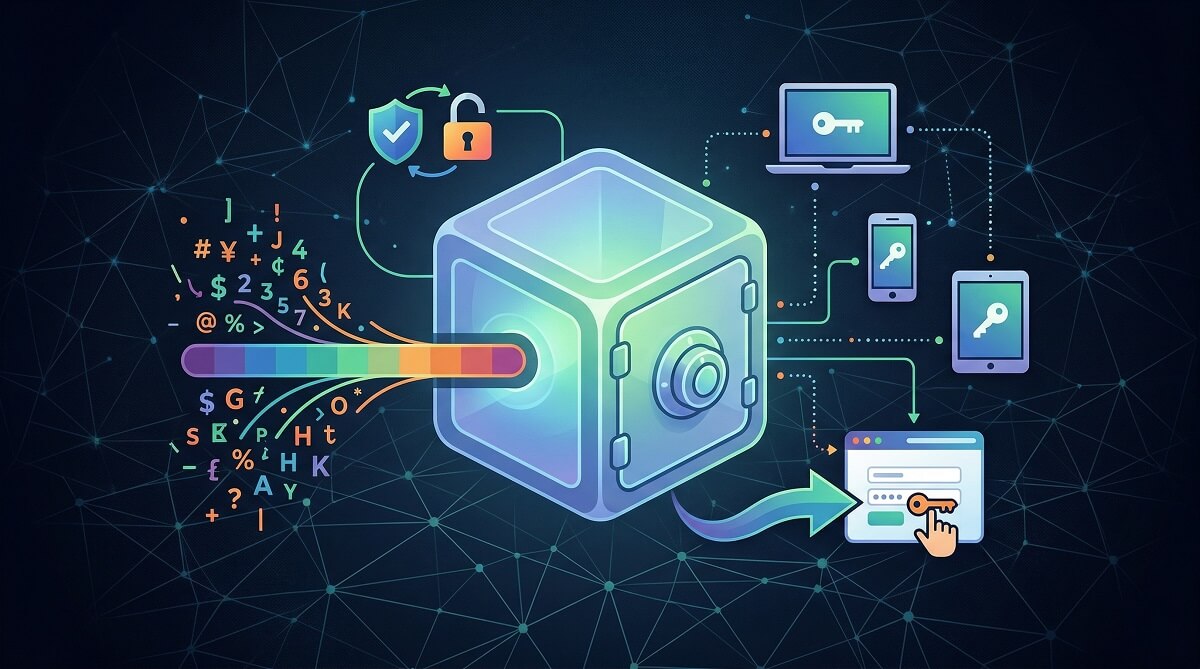
A password manager lets you store all your login credentials in one encrypted vault, generate strong random passwords for every account, and sign in automatically without typing a thing. The only password you need to remember is one master password to unlock the vault.
That’s the short answer. The longer one includes breach alerts, cross-device sync, secure password sharing with family members or coworkers, and the ability to store credit card numbers, secure notes, and other sensitive data. According to analysis of the 2025 Verizon Data Breach Investigations Report, stolen credentials were involved in 22% of breaches studied—and 88% of attacks against basic web applications used compromised logins. A password manager addresses the root cause: weak, reused passwords.
If you’ve ever clicked “Forgot my password” more than twice in a week, or if you use the same password across multiple sites, a password manager fixes both problems at once. Here’s a plain-English breakdown of everything it can do for you.
Is a Password Manager Right for You?
✅ Use One If You:
- Reuse the same password (or a variation like “Fido2019!”) across multiple sites
- Have more than 10 online accounts
- Want to stop the “forgot my password” cycle for good
- Share logins with a partner, family member, or coworker
- Want a heads-up if one of your accounts shows up in a data breach
- Are tired of typing your email and password on every new device
❌ You Might Hold Off If You:
- Only have 2–3 online accounts total
- Are uncomfortable trusting any third-party app with your credentials (though the encryption argument is strong)
- Need a fully offline solution with no cloud component (some options exist, but they’re less convenient)
The Core Things a Password Manager Lets You Do
1. Generate Truly Random, Strong Passwords
Most people pick passwords they can remember, which means patterns hackers already know: dictionary words, names, dates, common substitutions like “@” for “a.” A password manager replaces that habit entirely.
You tell it how long you want a password and what character types to include—uppercase, lowercase, numbers, symbols—and it creates something like vX#8mQj!kLp2$nRz on the spot. Each account gets its own completely distinct credential. If one site gets breached, the attacker has one password for one site—nothing they can use anywhere else.
Most managers also offer a passphrase generator if you prefer something memorable but still secure, like cobalt-tiger-rainfall-19.
2. Store All Your Credentials in One Encrypted Vault
Your passwords live in an encrypted digital vault on your device (and synced to the cloud, if you choose). The vault is protected by , the same standard used by governments and financial institutions. Before any data leaves your device, it’s scrambled into ciphertext that’s meaningless without your master password.
Beyond passwords, most managers can hold:
- Credit card numbers (for fast checkout autofill)
- Secure notes (WiFi passwords, software license keys, PIN codes)
- Scanned documents (passport images, insurance cards)
- Two-factor authentication codes (on paid plans for most apps)
3. Log In Automatically with Autofill
The browser extension watches for login forms and fills in your username and password without you lifting a finger. This isn’t just convenient—it’s also a phishing defense. The manager only autofills credentials on the exact domain where you saved them. A convincing fake site with a slightly different URL gets nothing.
Mobile apps work the same way on iOS and Android, autofilling inside native apps as well as mobile browsers. No more copy-pasting from a notes app.
4. Sync Passwords Across Every Device You Own
Change a password on your laptop and it’s available on your phone in seconds. Cloud-based managers handle this sync automatically, across every operating system. You’re not locked into one browser’s ecosystem the way you are with Chrome or Safari’s built-in tools.
5. Share Passwords Without Exposing Them
Need to give your partner access to the Netflix account? Or share a work login with a colleague? Password managers handle this with encrypted sharing—the other person gets access but never sees the actual password in plain text.
Family plans let you create shared folders for household logins (streaming services, home WiFi, delivery accounts) while keeping your personal passwords completely separate. You can grant read-only access or allow the other person to edit. Remove access anytime.
As of March 2026, family plan pricing from the major providers runs (check official sites for current rates):
- Bitwarden Families: $3.99/month for up to 6 users (each with Premium features) — per Bitwarden’s official pricing page
- 1Password Families: $4.49/month for up to 5 users — per 1Password’s official pricing page
- Dashlane Friends & Family: ~$7.49/month — check Dashlane.com for current pricing
6. Get Alerts When Your Accounts Are Compromised
Most paid password managers (and some free tiers) scan known breach databases for your email addresses and stored credentials. If a site you use gets hacked and your information turns up in stolen data dumps, you get a notification—ideally before an attacker can do anything with it.
The password audit feature works in the background too: it flags any duplicate passwords across your accounts, highlights weak credentials, and identifies logins you haven’t updated in years. Think of it as a security checkup that runs automatically.
Bitwarden’s free plan includes a basic data breach check for your email address. Full vault health reports—which show all weak, reused, and exposed passwords in one dashboard—require a Premium subscription (currently $1.65/month billed annually, per Bitwarden’s pricing page).
What a Password Manager Won’t Do
Being clear about limitations matters:
- It won’t stop all attacks. If malware is already running on your device, it can capture what you type or what’s in memory. A password manager reduces your exposure—it doesn’t make you invulnerable.
- It won’t automatically change passwords everywhere after a breach. Some managers offer one-click password change for select sites, but this feature isn’t universal. You still need to manually update credentials on most platforms.
- It won’t remember passwords you never added. The vault only knows what you put in it. A gradual approach—adding new accounts as you visit them—works better than trying to import everything at once.
- It won’t protect a weak master password. Your vault’s security depends on that one password plus your second factor. Choose a long passphrase and enable two-factor authentication on the vault itself.
Browser Password Manager vs. Dedicated App: Side-by-Side
Your browser already saves passwords. Here’s why most security professionals recommend a dedicated app instead:
| Feature | Browser Built-In (Chrome/Safari) | Standalone App (Bitwarden, 1Password) |
|---|---|---|
| Works across all browsers | ❌ Same browser only | ✅ All browsers |
| Works across all devices | ✅ (within same ecosystem) | ✅ All devices + OS |
| Zero-knowledge encryption | ❌ Chrome lacks device-level encryption | ✅ AES-256 before data leaves device |
| Breach / dark web alerts | ❌ Very limited | ✅ Most paid plans |
| Secure password sharing | ❌ | ✅ |
| Stores credit cards, notes, documents | Partial (cards only) | ✅ Full |
| 2FA for vault access | ❌ | ✅ |
| Passkey support | Partial | ✅ 1Password, Bitwarden, Dashlane |
| Cost | Free | Free (Bitwarden) to ~$3/month |
According to a 2025 comparison of browser password managers, Chrome’s built-in tool does not encrypt your data at the device level before syncing. If your Google account is compromised, your stored passwords go with it.
How to Get Started with a Password Manager
Setup takes about 15 minutes and you don’t have to import everything at once:
- Pick a manager. Bitwarden is free and open-source—a solid starting point. 1Password and Dashlane are polished paid options with strong track records.
- Create your master password. Make it long—a phrase you’ll remember but have never used online. Write it down and store it somewhere physically secure.
- Install the browser extension. This is what enables autofill. Without it, you lose half the benefit.
- Import existing passwords from your browser. Most managers accept a CSV export from Chrome, Firefox, or Safari.
- Enable two-factor authentication on the vault itself. Use an authenticator app (Google Authenticator, Authy), not SMS.
- Let it grow naturally. The manager will prompt you to save each new login as you visit sites. No need to add 200 accounts on day one.
Passkeys: The Next Step Beyond Passwords
Password managers are also where passkeys live. Passkeys are a newer login method—backed by Apple, Google, and Microsoft—that replaces passwords entirely with cryptographic keys stored on your device or in your manager.
As of 2025–2026, 1Password, Bitwarden, and Dashlane all support passkey storage and use. Bitwarden added system-level Windows 11 passkey login in November 2025, letting users authenticate at the OS level using keys stored in their vault. If a site you use supports passkeys, your manager can save and use them the same way it handles passwords.
You don’t need to do anything special—modern password managers handle passkeys automatically.
Frequently Asked Questions
Is it safe to store all my passwords in one place?
Yes, if you use a reputable manager with AES-256 encryption and enable two-factor authentication on the vault. The risk of one well-protected encrypted vault is far lower than the risk of reusing a weak password across 50 different sites. If a site you use gets breached and you’ve reused that password, attackers can access every account that shares it.
What happens if I forget my master password?
Most managers offer recovery options—a recovery key you print out during setup, a trusted emergency contact, or a recovery email. Set these up when you first create your account. Without a recovery method in place, losing your master password can mean permanently losing access to your vault. This is a non-negotiable setup step.
Can a password manager itself be hacked?
Password manager servers have been targeted. LastPass experienced a significant breach in 2022 where encrypted vault data was stolen. The key protection is zero-knowledge architecture: the company never has your master password, so even stolen vault data is useless to an attacker without it. Use a strong, unique master password and enable two-factor authentication—those two steps make a stolen encrypted vault effectively unusable.
Do password managers work on my phone?
Yes. All major password managers have iOS and Android apps that autofill credentials inside native apps and mobile browsers—not just desktop sites. Setup involves enabling the password manager as your system autofill provider in your phone’s settings, which takes about 30 seconds.
Is Bitwarden really free? What do you actually get?
Bitwarden’s free plan includes unlimited passwords on unlimited devices, autofill, password generation, zero-knowledge AES-256 encryption, passkey support, a basic breach check for your email, and secure sharing with one other user. It’s one of the most capable free tiers in the category. The $1.65/month Premium tier adds integrated TOTP codes, full vault health reports, file attachments, and emergency access—per Bitwarden’s official pricing.
Can I use a password manager for my whole family?
Yes. Family plans let you share select vaults (streaming services, utilities, household accounts) with household members while keeping personal logins completely private. Bitwarden Families covers up to 6 people for $3.99/month; 1Password Families covers up to 5 for $4.49/month. See the current pricing section above for details.
What about passkeys—do I need a separate app?
No. If you already use a password manager, it likely supports passkeys. When a website offers a passkey option during login or account creation, your manager saves and uses it automatically, the same way it handles a regular password. Your manager handles everything in the background.
Will using a password manager slow me down?
The opposite. Autofill is faster than typing, and you’ll stop spending time on password reset emails. The upfront cost is a 15-minute setup. After that, most users report logging in faster and with less friction than before.
Ready to pick a password manager? Start with Bitwarden’s free plan at bitwarden.com, or compare paid options like 1Password and Dashlane. For more on protecting your accounts, browse , or check our for product recommendations across all categories.
