


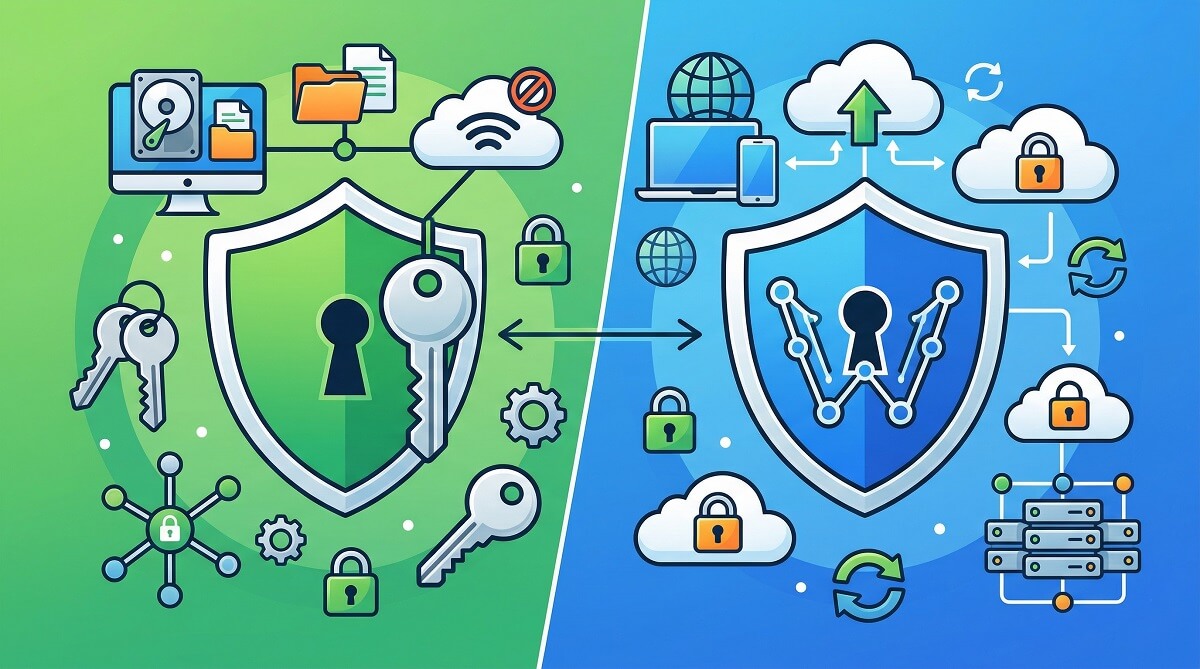
Both KeePass and Bitwarden are free. Both are open source. Both encrypt your passwords with algorithms that would take longer than the age of the universe to brute-force. So why does this comparison matter?
Because they make fundamentally different choices about where your data lives — and that one decision ripples into sync, mobile access, browser extensions, team use, and long-term reliability in ways that matter for how you actually use a credential vault every day.
This guide will not waste your time with vague praise for both tools. By the end, you will know which one to download today. For more guides on picking the right tools, see the ChubbytIps buying guides.
The Short Answer: Which Should You Pick?
KeePass and Bitwarden differ in one core way: KeePass stores your credential vault as a local file that you control entirely. Bitwarden stores your vault on its servers — encrypted before it leaves your device, but hosted by a company.
That architecture difference drives everything else on this page. If you want to stop reading now:
- Pick Bitwarden if you want the easiest setup, automatic sync across all your devices, and polished official apps everywhere. It is the right tool for most people.
- Pick KeePass (specifically KeePassXC) if you want your credentials to never touch any server under any conditions, and you are comfortable managing your own file sync. It is the right tool for users who prioritize control over convenience.
You will be well-protected with either. The question is whether you want to own the infrastructure or trust someone else to hold your encrypted vault.
Mini Decision Checklist
Choose Bitwarden if you…
- Want automatic sync across all devices without any manual setup
- Are new to dedicated password managers and want official apps for every platform
- Use multiple browsers and need a reliable, well-maintained browser extension
- Want to securely share passwords with a partner or family members
- Are comfortable with a company holding your encrypted vault (they cannot read it)
- Want emergency access — the ability to designate a trusted contact who can request vault access if you are incapacitated
Choose KeePass (KeePassXC) if you…
- Do not want any third party — including a for-profit company — to store your vault, even encrypted
- Are comfortable choosing and managing your own sync method (Dropbox, Syncthing, local network)
- Primarily work on a desktop and can accept a slightly more manual mobile workflow
- Are an IT professional, developer, or sysadmin who values plugin extensibility and command-line integration
- Want a tool that works with zero internet connectivity, always, without exception
- Need SSH key management integrated with your password manager
Neither may be the best fit if you…
- Need a business team vault with shared folders, admin controls, and SSO — look at Bitwarden Teams ($4/user/month) or enterprise options
- Want zero technical involvement ever — your browser’s built-in manager or iCloud Keychain may be more practical
What These Tools Actually Are
KeePass: The Local Vault
KeePass was created in 2003 by Dominik Reichl. At its core, KeePass is a file — a .kdbx database file that sits on your device, encrypted with your master password. The original application runs on Windows. Version 2.61 was released on March 4, 2026, confirming the project is actively maintained as of this writing.[F01]
For most users today, KeePassXC is the recommended way to use KeePass. It is a community-maintained fork that runs natively on Windows, macOS, and Linux without requiring extra runtime dependencies. KeePassXC 2.7.11 (released November 24, 2025) adds features the original never had: built-in TOTP generation, browser integration via a native messaging extension, SSH agent support, passkeys, and a significantly improved interface.[F05, F07]
The fundamental architecture stays the same either way: your credentials live in a file, and you decide where that file goes.
Bitwarden: The Synced Vault
Bitwarden launched in 2016 as an open-source, cloud-synced alternative to expensive proprietary password managers. The source code is public under AGPL v3.0. Bitwarden Inc. is a for-profit company that develops and maintains the platform.
Bitwarden stores your vault on its servers — encrypted before it leaves your device. It offers official apps for Windows, macOS, Linux, iOS, and Android, browser extensions for all major browsers, and a command-line client. If you want the server to be yours, you can self-host using Vaultwarden (a community-maintained Rust implementation) or Bitwarden’s official server software.
Security and Encryption: How They Actually Protect Your Passwords
Both tools take cryptographic protection seriously. The difference is not the quality of the algorithms — it is where and how the encryption is applied.
KeePass Encryption
KeePass 2.61 gives you a choice of cipher: AES-256, ChaCha20, or Twofish. All three are strong options; AES-256 and ChaCha20 are the most widely used. For key derivation — the process of turning your master password into the actual encryption key — KeePass supports Argon2d, Argon2id, and AES-KDF. Argon2 is memory-intensive by design, which makes it resistant to GPU-based cracking attacks. Integrity is verified with HMAC-SHA-256 using an Encrypt-then-MAC scheme that detects any tampering with the database file.[F02, F03, F04]
Because all of this happens locally, the attack surface is limited to your machine. Someone cannot steal your passwords by breaching a server. They would need access to your device (or your .kdbx file) and your master password.
Bitwarden Encryption
Bitwarden encrypts vault data with AES-256-CBC combined with HMAC-SHA-256. For organizational sharing and emergency access features, it uses RSA with Optimal Asymmetric Encryption Padding (OAEP). Key derivation uses PBKDF2-SHA-256 or Argon2id — check bitwarden.com/help/kdf-algorithms/ for current default iteration counts, which Bitwarden updates periodically.[F14, F15]
Critically, Bitwarden operates on a zero-knowledge architecture: encryption and decryption happen on your device before any data reaches Bitwarden’s servers. The servers store only the already-encrypted blob. Bitwarden cannot read your passwords — not because they promise not to, but because they do not hold the decryption key. Bitwarden is also investigating post-quantum cryptography options for future-proofing.[F16, F17]
Security Audits
This is where Bitwarden has a clear documentation advantage.
Bitwarden has undergone independent third-party security audits every year since 2018. The 2025 audit program included a cryptography review by ETH Zurich’s Applied Cryptography Group, a mobile app audit by Unit 42 (Palo Alto Networks), and a web/network assessment by Fracture Labs. Earlier audits were conducted by Cure53, IOActive, Mandiant, and Paragon Initiative Enterprises. Bitwarden publishes the full reports publicly. The company also holds ISO 27001, SOC 2 Type 2, SOC 3, HIPAA, GDPR, and CCPA certifications.[F18, F19, F20, F21]
KeePassXC has a different kind of credibility: its entire codebase is open-source under GPLv3 and publicly auditable by anyone at any time. KeePassXC 2.7.9 received a First-level Security Certification (CSPN) from France’s ANSSI — the national cybersecurity agency — a certification recognized in both France and Germany.[F06]
The honest framing: Bitwarden has more formal audit documentation. KeePassXC has ANSSI certification and full public code transparency. Neither has a meaningful weakness here for personal use.
Sync: The Biggest Practical Difference
Cross-device synchronization is where most people feel the difference between these two tools in daily use.
Bitwarden Sync
Bitwarden’s sync is built in and automatic. Create an account, install the app on any device, log in, and your vault is there. Changes on your phone appear on your laptop within seconds. There is nothing to configure. This works because Bitwarden’s servers act as the sync hub.
Bitwarden also caches your vault locally, so you can read passwords without an internet connection. Editing requires a sync — you cannot add or change entries offline and have them sync later from a disconnected state.
KeePass Sync Options
KeePass has no built-in sync. Your .kdbx file lives on your device, and getting it to another device is your responsibility. The options are genuinely flexible:
- Cloud file sync (Dropbox, Google Drive, OneDrive, iCloud Drive): Save the .kdbx file to a synced cloud folder. This is the most common approach. Your vault file is stored on a third-party server, but it is encrypted — the cloud provider cannot read it.
- Syncthing: Peer-to-peer sync between your own devices, no cloud server involved. More setup required, but your data never touches a third-party server in any form.
- Local network share: Works well if all your devices are frequently on the same network.
- Manual / no sync: Keep the file on one device and do regular backups. Suitable for users who only use one computer.
KeePass handles merge conflicts when you edit the database from two locations — it uses a built-in sync logic when you open a newer version of the file. In practice, conflicts are uncommon if you are using a cloud sync service that keeps files current.
Offline Access Reality
KeePass is offline-first by design. The file opens on your machine whether or not you have an internet connection, forever, with no dependency on any external service.
Bitwarden is effectively offline for reads (cached vault) but requires connectivity for edits. If you self-host Bitwarden on your local network, you gain more control over offline behavior — but that is a significantly more advanced setup.
Platform and App Support
Here is how each tool covers the major platforms:
| Platform / Feature | KeePass (KeePassXC) | Bitwarden |
|---|---|---|
| Windows | Yes — KeePassXC (native) | Yes — official app |
| macOS | Yes — KeePassXC (native) | Yes — official app |
| Linux | Yes — KeePassXC (native) | Yes — official app |
| iOS | KeePassium or Strongbox (third-party) | Yes — official app |
| Android | KeePass2Android or KeePassDX (third-party) | Yes — official app |
| Chrome extension | Yes — KeePassXC-Browser | Yes — official |
| Firefox extension | Yes — KeePassXC-Browser | Yes — official |
| Edge / Safari / Brave | Limited / varies by client | Yes — official extensions |
| Command line | Yes — via KeePassXC CLI | Yes — official bw CLI |
| Self-hosting | N/A (local file; no server component) | Yes — Vaultwarden or official server |
| Official mobile apps | No — relies on third-party clients | Yes — iOS and Android |
| Passkeys | Yes — KeePassXC 2.7.x | Yes — all plans including Free |
| Cost | Free (all features) | Free / $19.80/yr Premium |
The key difference is that Bitwarden’s app ecosystem is unified — all clients are maintained by the same team and receive coordinated security updates. KeePass clients are high-quality third-party projects, but update schedules, features, and UX quality vary by client and platform.
On mobile specifically, Bitwarden’s official iOS and Android apps have a clear UX advantage. KeePassium (iOS) and KeePass2Android are capable alternatives, but they are separate projects not coordinated with the main KeePass development.
Pricing: What You Actually Get for Free
KeePass: Free, Forever, No Tiers
KeePass has no paid version. No subscription. No premium tier. No feature wall. Every capability in KeePassXC — including TOTP generation, SSH agent, browser integration, and passkeys — is free under GPLv3. That cannot change; the license prohibits it.[F23]
Bitwarden Pricing (as of March 2026)
| Plan | Cost | What You Get |
|---|---|---|
| Free | $0 | Unlimited passwords, unlimited devices, passkey management, basic 2FA, all browser/mobile/desktop apps |
| Premium | $1.65/mo ($19.80/yr) | Integrated TOTP authenticator, 5 GB encrypted file attachments, emergency access, phishing blocker, security health reports, advanced 2FA (YubiKey, FIDO2) |
| Families | $3.99/mo ($47.88/yr) | Up to 6 Premium accounts, unlimited sharing, unlimited collections, 5 GB personal + 5 GB organizational storage |
| Teams / Enterprise | See bitwarden.com/pricing | Shared collections, admin console, SSO, custom policies, self-hosting support |
Source: bitwarden.com/pricing, March 2026[F10, F11, F12, F13]
For most personal users, Bitwarden Free covers everything. The $19.80/year Premium upgrade is worth considering mainly for the built-in TOTP authenticator and hardware security key support. Keep in mind that KeePassXC includes TOTP generation for free — so if that is your only reason to upgrade, consider whether switching to KeePassXC makes more sense for your workflow.
Browser Extensions: How Each Tool Fills In Your Passwords
Bitwarden Browser Extensions
Bitwarden offers official extensions for Chrome, Firefox, Edge, Safari, Opera, Brave, and Vivaldi. They are maintained by the same team that builds the rest of Bitwarden. Auto-fill works reliably across a wide range of sites. The extension connects to Bitwarden’s cloud (or your self-hosted server) to access your vault.
KeePassXC-Browser
KeePassXC uses a native messaging protocol: the browser extension communicates directly with the KeePassXC desktop app on your machine. Your vault never travels through any network connection — the browser extension reads credentials from the locally running application. This is a meaningful privacy distinction: your passwords do not leave your machine during autofill.
The tradeoff is convenience. KeePassXC must be open and unlocked on your desktop for browser auto-fill to work. If you close KeePassXC, the browser extension cannot fill credentials. This is a non-issue for desktop-primary users but can be inconvenient on machines you share or log into remotely.
Which Approach Is More Secure?
Both are defensible. Bitwarden’s cloud-connected model means you are trusting Bitwarden’s server security (backed by annual audits and ISO 27001 certification). KeePassXC’s local model means credentials never transit a network during autofill, but it requires KeePassXC to be running.
The concern some privacy advocates raise about browser extensions — that a compromised extension could intercept credentials at autofill — applies to both models. The difference is that with KeePassXC, the exposure window is limited to the local machine; with Bitwarden, there is also the cloud leg of the connection (which is encrypted and zero-knowledge).
Moving Between Them: Migration in Both Directions
KeePass to Bitwarden
- In KeePassXC, go to Database > Export > KeePass XML (.xml)
- Log into your Bitwarden vault online
- Go to Tools > Import Data, select KeePass (xml) as the format
- Upload the exported XML file
- Review imported entries — titles, usernames, URLs, and notes import cleanly
- File attachments do not transfer automatically; re-upload them manually
The process takes a few minutes for most users. Delete the exported XML file securely after import — it contains your passwords in a readable format.
Bitwarden to KeePass
- In Bitwarden, go to Tools > Export Vault, choose JSON or CSV format
- In KeePassXC, go to Database > Import and select the Bitwarden JSON format (KeePassXC supports Bitwarden imports directly)
- Verify entries imported correctly — check a sample of passwords, URLs, and notes
- Set up your preferred sync method for the resulting .kdbx file
- Delete the export file securely after import
Who Should Use Each One: The Expanded View
KeePass Is the Stronger Choice When…
- You work in an air-gapped, restricted-network, or high-security environment where cloud services are prohibited or impractical
- You are an IT professional or sysadmin who wants SSH key management, command-line scripting, and database extensibility built in
- Your threat model includes concern about cloud provider data requests, subpoenas, or server breaches
- You want a tool with no commercial incentive to change its pricing, sell your data, or shut down
- You need TOTP generation and SSH agent support without paying for it
- You want formal government security certification: KeePassXC 2.7.9 holds ANSSI CSPN certification
Bitwarden Is the Stronger Choice When…
- You have multiple devices — phone, laptop, and work computer — and want sync that just happens without any setup on your part
- You are helping a less technical family member set up a password manager for the first time
- You need to securely share passwords with another person — Bitwarden’s organization features handle this gracefully
- You value the formal audit trail: annual independent audits, published reports, ISO 27001, SOC 2 Type 2
- You want emergency access — a designated trusted contact who can request vault access if you are incapacitated
- You may need to access your passwords from a device that is not yours (the web vault at vault.bitwarden.com requires only a browser)
Frequently Asked Questions
Is KeePass or Bitwarden more secure?
Neither is categorically more secure. Both use strong, well-reviewed encryption. KeePass’s local architecture limits server-side attack surface; Bitwarden’s zero-knowledge design means a server breach would yield only encrypted data that Bitwarden itself cannot decrypt. The right answer depends on your specific threat model — physical device theft vs. cloud server compromise.
Does Bitwarden store my passwords in the cloud?
Yes — but only in encrypted form. Your vault is encrypted on your device before it is sent to Bitwarden’s servers. Bitwarden does not hold your decryption key. What is stored on their servers is meaningless to anyone without your master password. If you want full control over the server, you can self-host using Vaultwarden.[F16]
What is KeePassXC and is it different from KeePass?
KeePassXC is a community-maintained fork of the original KeePass that runs natively on Windows, macOS, and Linux. It adds features the original does not have: built-in TOTP generation, browser integration via native messaging (KeePassXC-Browser), SSH agent support, passkeys, and a modern interface. The underlying .kdbx file format is compatible between KeePass and KeePassXC. For most users, KeePassXC is the recommended client.[F07]
Can I use KeePass without Dropbox or any cloud service?
Yes. Dropbox is one option, not a requirement. You can sync your .kdbx file using Google Drive, OneDrive, iCloud, Syncthing (peer-to-peer with no cloud), a local network share, or simply keep it on one device with manual backups. The file is encrypted regardless of where it lives.
Can I import my KeePass passwords into Bitwarden?
Yes. Export your KeePass database as a KeePass XML file from KeePassXC, then import it into Bitwarden at Tools > Import Data. The process takes a few minutes. File attachments must be re-uploaded manually.
Does Bitwarden work offline?
Bitwarden caches your vault locally, so you can read passwords without an internet connection. Adding or editing entries requires syncing — you cannot work offline and have changes propagate later. If connectivity reliability matters for your use case, KeePass is the stronger choice.
Is Bitwarden free forever?
Bitwarden’s free personal plan covers unlimited passwords on unlimited devices with no time limit. As of March 2026, the free tier includes passkey management and basic 2FA. Premium features cost $19.80/year. Bitwarden has shown no indication of changing its free tier model, but for a commitment that cannot be revoked by a company decision, KeePass is the only truly permanent free option.
What happens to my KeePass passwords if I lose my device?
Your passwords are in the .kdbx file. If you have a synced copy on Dropbox, Google Drive, or another location, you restore from there. If you have no backup and no sync copy, the passwords are gone. Maintaining a regular backup of your .kdbx file is not optional — it is the core responsibility of using KeePass.
The Bottom Line
After covering the encryption specs, the pricing breakdown, the platform matrix, and the sync tradeoffs, the picture is clear.
For most people, Bitwarden is the practical recommendation. It has the lowest setup friction, the most polished cross-platform experience, automatic sync that requires zero configuration, and a free tier that covers everything the average user needs. The annual third-party audits and ISO 27001 certification provide a level of institutional trust that a solo-developer open-source project cannot match by definition.
For users who want full control over their data infrastructure, KeePass (KeePassXC) is the more defensible choice. Your credentials never leave your machine unless you explicitly put the file somewhere. The ANSSI certification on KeePassXC 2.7.9 gives it formal government-level security validation. The tool has been actively maintained for over two decades and has no commercial incentive to change.
There is no wrong answer here. Pick the one that matches how you actually work — and then use it consistently. The worst password manager is the one you stop using.
Start Using One Today
If you chose Bitwarden, create a free account at bitwarden.com. Setup takes about two minutes.
If you chose KeePass, download KeePassXC at keepassxc.org, then decide on your sync approach before you start adding passwords — setting up sync first saves you a headache later.
For step-by-step setup help, browse the how-to guides at ChubbytIps or check out the full software reviews section for additional tools to consider alongside your password manager.
