


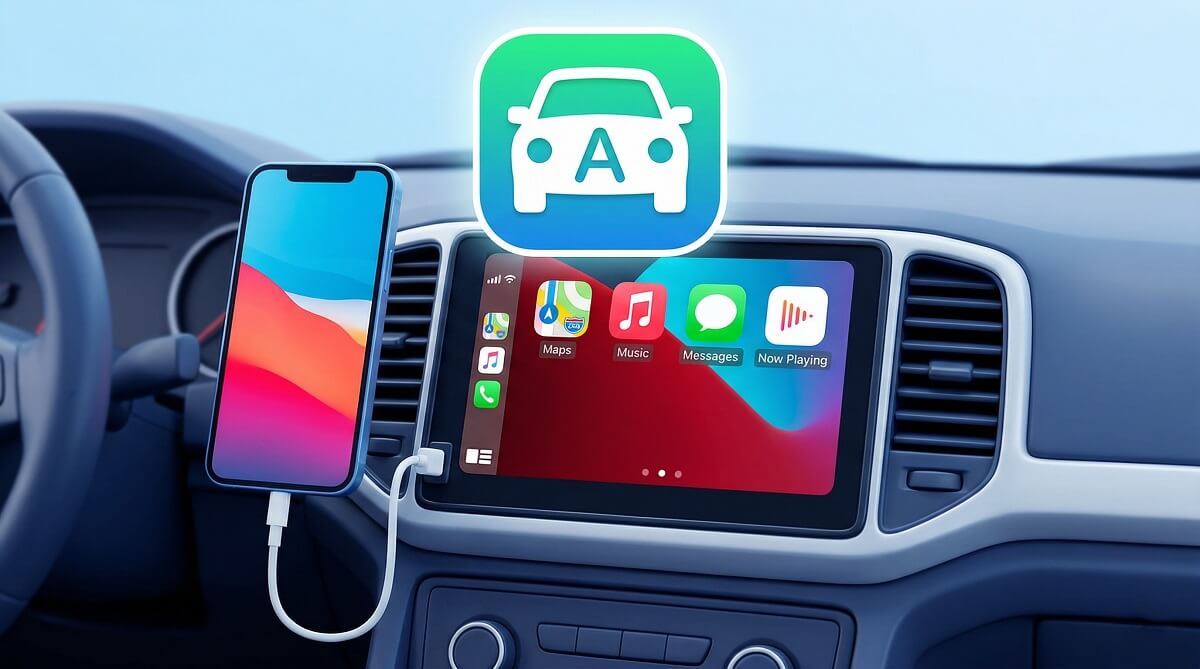
Apple CarPlay puts your iPhone’s navigation, music, calls, and messages on your car’s built-in screen — and getting it running typically takes less than two minutes. You need any iPhone from the iPhone 5 onward, a CarPlay-compatible vehicle, and Siri enabled on your device. For wired connections, the cable matters more than most guides admit.
If you have an iPhone 15 or 16 and CarPlay simply won’t activate after plugging in, the most likely reason isn’t a settings problem — it’s a charge-only USB-C cable that doesn’t transfer data. That single issue accounts for the bulk of CarPlay complaints after people upgrade iPhones. We’ll cover the fix in the troubleshooting section below.
Wireless CarPlay drops the cable entirely but needs a vehicle that supports it along with Wi-Fi turned on in your iPhone settings. If your car only has wired CarPlay, a third-party adapter in the $30–$70 range can add wireless capability without any permanent modifications.
Is CarPlay Right for Your Setup?
✅ Best For
- Any iPhone user from iPhone 5 or later — all models are supported
- Drivers who want turn-by-turn directions without touching their phone
- Anyone with a CarPlay-compatible car (most 2015+ models; over 800 models supported as of 2026)
- People who regularly use Spotify, Apple Music, Waze, or Google Maps while driving
❌ Skip If
- You have an Android phone — use Android Auto instead
- Your car’s infotainment system doesn’t support CarPlay (check your owner’s manual or the Apple compatibility list)
- Your car predates 2015 and doesn’t have an aftermarket head unit installed
What You Need Before Starting
Before touching any settings, make sure you have the basics in place. A few minutes of prep here prevents most of the frustration people run into later.
Required for Any CarPlay Setup
- A compatible iPhone: Any model from iPhone 5 onward works with standard CarPlay. That includes every iPhone Apple has sold since 2012 — 5, 5c, 5s, 6 series, SE (all generations), 7 through 16, and beyond.
- A CarPlay-compatible vehicle: Apple’s official compatibility list currently includes over 800 car models. Most vehicles from 2016 onward have it; some brands added it in 2015. If you’re unsure, check your owner’s manual under “infotainment” or “connectivity.”
- Siri enabled: Go to Settings > Siri & Search and make sure “Listen for ‘Hey Siri'” is turned on. Wireless CarPlay pairing in particular needs Siri active.
For Wired CarPlay — Get the Right Cable
This is where a lot of people go wrong, especially after upgrading to an iPhone 15 or 16.
- iPhone 14 and older (Lightning port): A standard Apple Lightning to USB-A or USB-C cable works fine.
- iPhone 15, 16, or 16e (USB-C port): You need a USB-C cable that explicitly supports data transfer — not just charging. Many cheap cables that ship with chargers are charge-only and will not trigger CarPlay. Look for cables marketed as “data + charge” or “for CarPlay.” Anker and Belkin both make reliable options for under $15.
For Wireless CarPlay — Two Extra Requirements
- A vehicle with wireless CarPlay support (not all CarPlay cars have it — check your manual)
- Wi-Fi and Bluetooth both turned on in your iPhone settings — wireless CarPlay uses both to create a direct connection with your car’s system
How to Set Up Wired CarPlay
This is the most common setup. If your car has a USB port labeled with a CarPlay or smartphone icon, start here.
- Start your car and let the infotainment system fully load.
- Enable Siri: Settings > Siri & Search > turn on “Listen for ‘Hey Siri'” if it isn’t already on.
- Plug your iPhone into the car’s USB port using a data-capable cable. The port is usually labeled with a phone or CarPlay icon. If there are multiple USB ports, try the one closest to the infotainment screen first — some cars have a dedicated data port and a separate charge-only port.
- On your iPhone: Tap Allow when the “Allow This Accessory to Connect?” prompt appears.
- On your car’s screen: Select Apple CarPlay or Always Enable when prompted. Choosing “Always Enable” means the system connects automatically every time you plug in — recommended.
- CarPlay Home should appear on your dashboard display. If it doesn’t, look for a CarPlay icon on the infotainment home screen and tap it.
That’s it for most vehicles. The whole process typically takes about 30 seconds once you’ve done it once.
How to Set Up Wireless CarPlay
Wireless CarPlay means no cable to fumble with — your phone connects automatically when you get in the car. The setup is a bit more involved the first time, but subsequent connections are automatic.
If Your Car Has a Steering Wheel Voice Button
- Start your car.
- On your iPhone, go to Settings > Wi-Fi and turn Wi-Fi on. Also confirm Bluetooth is on.
- Press and hold the voice command button on your steering wheel until you hear or see a pairing prompt.
- On your iPhone, your car should appear as a network under Wi-Fi. Tap it, then confirm Auto-Join is enabled.
- Go to Settings > General > CarPlay and select your car from the Available Cars list.
- Confirm the pairing on your car’s infotainment screen. CarPlay Home should open on the dash.
If Your Car Has No Steering Wheel Controls
You can start the pairing from your iPhone directly without pressing any steering wheel buttons:
- Start your car and make sure the infotainment system is in wireless or Bluetooth mode.
- On your iPhone, turn on both Wi-Fi and Bluetooth.
- Go to Settings > General > CarPlay.
- Under “Available Cars,” your vehicle should appear. Tap it.
- Confirm the connection on your car’s screen.
If your car doesn’t appear in the available list, check your infotainment system’s Bluetooth settings — you may need to put it in discovery mode from the car side first.
Wired-Only Car? Add Wireless with an Adapter
If your car has standard wired CarPlay but no wireless capability, a third-party adapter can add it. The Carlinkit 4.0 is one of the most widely-used options — it plugs into your car’s existing USB port, and after a one-time setup, your iPhone connects wirelessly every time you get in the car. It’s compatible with roughly 98% of factory OEM CarPlay systems (the main exceptions are BMW and Tesla). Pricing is typically around $69 on Amazon, though it fluctuates — check for current pricing.
iPhone and Car Compatibility at a Glance
Which iPhones Work with CarPlay
Every iPhone from the iPhone 5 (2012) onward is compatible with standard CarPlay. That includes:
- iPhone 5, 5c, 5s
- iPhone 6, 6 Plus, 6s, 6s Plus
- iPhone SE (1st, 2nd, and 3rd generation)
- iPhone 7, 7 Plus
- iPhone 8, 8 Plus
- iPhone X, XR, XS, XS Max
- iPhone 11, 11 Pro, 11 Pro Max
- iPhone 12 series through iPhone 16 series, including the 16e
According to Apple’s official CarPlay page, CarPlay Ultra — the next-generation version that extends across your instrument cluster and multiple vehicle displays — requires an iPhone 12 or later running iOS 18.5 or higher and is currently available on select 2024 and later model year vehicles. For regular CarPlay, none of those extra requirements apply.
How to Check if Your Car Supports CarPlay
Three quick ways to find out:
- Check your owner’s manual for “Apple CarPlay” in the infotainment or connectivity section
- Look at your dashboard screen — a CarPlay logo in the home menu confirms support
- Search Apple’s vehicle compatibility list — it covers all 800+ supported models by make, model, and year
What If Your Car Isn’t Compatible?
Aftermarket head units from Alpine, Pioneer, and Sony add CarPlay (and often Android Auto) to vehicles that didn’t ship with it. Installation typically runs $200–$600 depending on the unit and your car’s dash configuration.
Wired vs. Wireless CarPlay
| Feature | Wired CarPlay | Wireless CarPlay |
|---|---|---|
| Connection method | USB cable | Wi-Fi + Bluetooth |
| Initial setup time | ~30 seconds | 2–5 minutes (one-time) |
| Charges phone while using | Yes | No (unless you use a separate charger) |
| Automatic reconnect | When plugged in | Auto on car start (after setup) |
| Reliability | Very high | High (occasional reconnect needed) |
| Battery impact | None (charges phone) | Drains battery without separate charger |
| Car requirement | USB CarPlay port | Wireless CarPlay support |
Customizing CarPlay to Work the Way You Want
Rearranging Apps on the CarPlay Dashboard
By default, CarPlay shows apps in whatever order Apple decides. To put your most-used apps front and center:
- Go to Settings > General > CarPlay on your iPhone.
- Tap your car’s name, then tap Customize.
- Use the Add (+) and Remove (–) buttons to control which apps appear. Tap and drag the lines on the right to reorder them.
The changes take effect the next time you connect. Only apps with CarPlay support appear here — that includes Maps, Music, Phone, Messages, Podcasts, and dozens of third-party apps like Spotify, Waze, Google Maps, Audible, and WhatsApp.
A Few Other Settings Worth Knowing
- Siri message announcements: Settings > Notifications > Announce Notifications > CarPlay > Announce Messages — Siri will read incoming texts aloud so you don’t have to look at your phone (requires iOS 15+).
- Allow CarPlay While Locked: Settings > General > CarPlay > your car > toggle on. Handy if you forget to unlock before plugging in.
- Change wallpaper: Open the Settings app inside CarPlay on your dash display > Wallpaper > choose > Set.
- SharePlay for group music control: With iOS 17 or later, passengers on the same car Wi-Fi can add to and control the queue through SharePlay. The driver needs an Apple Music subscription; passengers just need iOS 17+.
CarPlay Won’t Connect? Common Fixes That Actually Work
1. Check Your USB Cable (iPhone 15/16 — Start Here)
This is the most common issue when upgrading to a newer iPhone with a USB-C port. A 307-reply Apple Community thread confirms that charge-only USB-C cables won’t activate CarPlay. The cable must support data transfer. Two confirmed options that work:
- Anker USB-A to USB-C cable (~$10 at Walmart or Amazon)
- Belkin BoostCharge Braided USB-C to USB-A cable (~$10–$15 at Best Buy or Amazon)
The fix is straightforward: buy a cable labeled for data transfer or specifically for CarPlay, replace the old one, and plug in. Most people report CarPlay working immediately.
2. CarPlay Disabled in Screen Time
If CarPlay stopped working after setting up a new iPhone — and the cable isn’t the problem — check Screen Time. After an iPhone restore or upgrade, Screen Time restrictions sometimes carry over with CarPlay disabled.
Fix: Settings > Screen Time > Content & Privacy Restrictions > Allowed Apps > CarPlay — make sure the toggle is on.
3. Reset Network Settings
When the cable is fine and Screen Time isn’t the issue, a network reset often clears whatever’s blocking the connection. Apple Support recommends this for persistent CarPlay problems.
Go to: Settings > General > Transfer or Reset iPhone > Reset > Reset Network Settings.
Your iPhone will restart. You’ll need to re-enter Wi-Fi passwords and reconnect Bluetooth devices afterward — but most users report CarPlay works immediately after.
4. Forget the Car and Start Fresh
If your car and iPhone have gotten into a broken state, wipe the pairing on both ends:
- On iPhone: Settings > General > CarPlay > your car > Forget This Car
- On your car’s infotainment: Go to Bluetooth settings and delete or forget the iPhone device
Then set up CarPlay from scratch using the wired steps above. This resolves connection loops where the car and phone remember each other incorrectly.
5. Check for a Dirty or Underpowered USB Port
Some cars have multiple USB ports — one for data (CarPlay), others for charging only. If you’ve been using a charger-only port, switch to the one closest to your infotainment screen or the one labeled with a phone icon. Lint and debris in the USB port can also cause intermittent connections — a can of compressed air usually fixes it.
Frequently Asked Questions
Do I need Wi-Fi for wireless CarPlay?
You need Wi-Fi turned on in your iPhone settings, but wireless CarPlay doesn’t use your home network or consume cellular data. Your iPhone and car create a direct local Wi-Fi connection between themselves. As Apple’s support page confirms, both Wi-Fi and Bluetooth must be enabled on your iPhone for wireless CarPlay to work.
Can I use CarPlay without Siri?
Wired CarPlay will display apps even if Siri is off, but you won’t have voice control — which defeats most of the safety advantage. Wireless CarPlay pairing requires Siri during setup. The practical answer: keep Siri on. If you’re concerned about privacy, you can leave “Hey Siri” off and still use Siri by pressing the steering wheel button or touching the CarPlay dashboard.
What apps work with CarPlay?
Built-in Apple apps: Maps, Music, Phone, Messages, Podcasts, Calendar, News, and Siri. Third-party apps that work well: Spotify, Google Maps, Waze, Apple Music (obviously), Audible, Amazon Music, WhatsApp, and many more. Only apps that Apple has approved for CarPlay appear on the dashboard — developers have to build CarPlay support into their apps specifically.
Why does CarPlay keep disconnecting?
The most common causes: a cable that isn’t fully rated for data transfer (see iPhone 15/16 section above), a dirty or loose USB port, or a car USB port that switches to charge-only when the engine is running. If it’s wireless CarPlay, interference from other Bluetooth devices or a weak Wi-Fi signal in your parking garage can also cause drops.
Can I use CarPlay in a car that doesn’t support it?
Not without hardware changes. Aftermarket head units from Alpine, Pioneer, and Sony add CarPlay support to cars that didn’t ship with it. Installation typically runs $200–$600 depending on the unit and your car’s dashboard layout. If you rent or lease your vehicle, check whether permanent modifications are allowed first.
Does wireless CarPlay drain my battery faster?
Yes. Wired CarPlay charges your iPhone while in use, so your battery actually goes up during a drive. Wireless CarPlay uses both Wi-Fi and Bluetooth continuously, and your phone isn’t charging, so battery levels drop. For longer drives, plug a USB-C charger into a second port or use a wireless charging pad if your car supports it.
Can passengers control music through CarPlay?
Yes, with iOS 17 or later. Through SharePlay, anyone in the car on the same Wi-Fi network can add to the queue and control playback using their iPhone. According to Apple’s official support documentation, the driver must have an Apple Music subscription, but passengers only need iOS 17+.
What is CarPlay Ultra?
CarPlay Ultra is Apple’s next-generation CarPlay that extends across multiple vehicle displays, including your instrument cluster. It shows real-time speed, fuel level, temperature, and driver-assist information — all controlled by your iPhone. It requires iPhone 12 or later with iOS 18.5+, and as of early 2026, it’s available on select 2024 and later model vehicles. Standard CarPlay isn’t going away — Ultra is an upgrade for compatible newer vehicles.
Ready to Connect?
For most people, CarPlay setup is plug-and-play. If you’re still running into trouble, the cable fix or the Screen Time check resolves it for the vast majority of users. Check current prices on CarPlay accessories — including data cables and wireless adapters — on Amazon or Best Buy.
